






This guide is part of the Google Chrome series
1.
Add a Facebook button to your toolbar in Chrome
2. Clear search history in Chrome ver 12.0.742.112
3. Have the same tabs open when Chrome is started
4. How to bookmark all tabs in Chrome
5. How to check your Google Chrome version
6. How to clear certain pages from web history
7. How to clear search history in Google Chrome
8. How to create a send email link in Chrome
9. How to install Angry Birds for the Chrome browser
10. How to install email extension for Chrome
2. Clear search history in Chrome ver 12.0.742.112
3. Have the same tabs open when Chrome is started
4. How to bookmark all tabs in Chrome
5. How to check your Google Chrome version
6. How to clear certain pages from web history
7. How to clear search history in Google Chrome
8. How to create a send email link in Chrome
9. How to install Angry Birds for the Chrome browser
10. How to install email extension for Chrome
Make: clear history
Model / Product: Chrome
Version: 5.0.357.99
Objective / Info: How to clear certain pages from your web history in the Google chrome web browser.
Model / Product: Chrome
Version: 5.0.357.99
Objective / Info: How to clear certain pages from your web history in the Google chrome web browser.
1
Launch Chrome by double left clicking the desktop icon.2
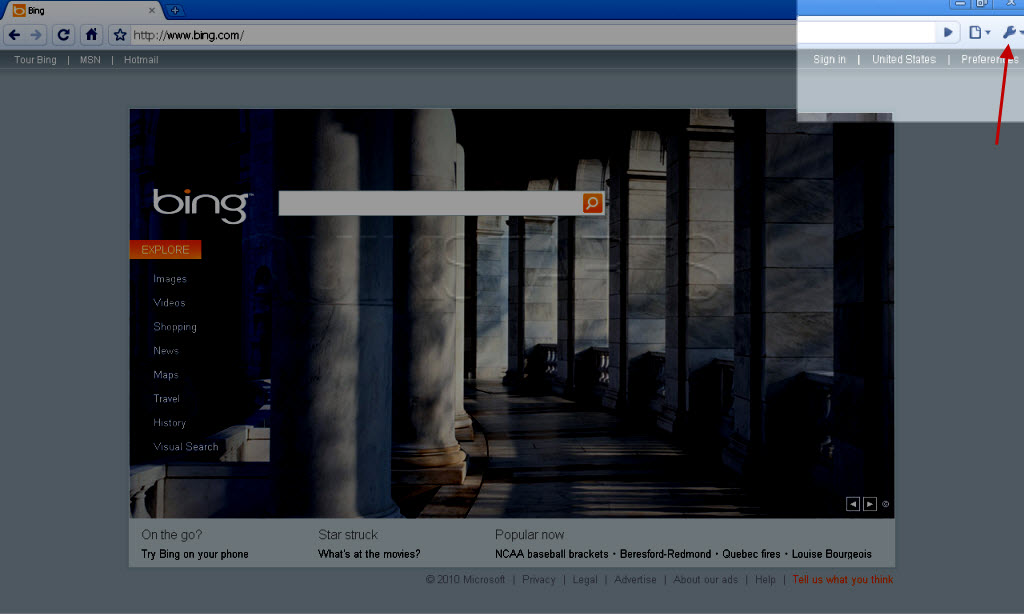
Click on the wrench icon in the upper right hand corner.
3
Click "History" from the menu.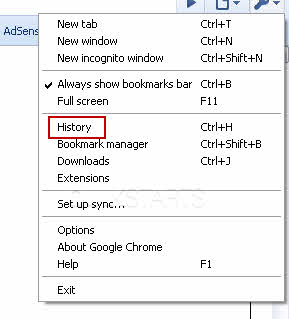
4
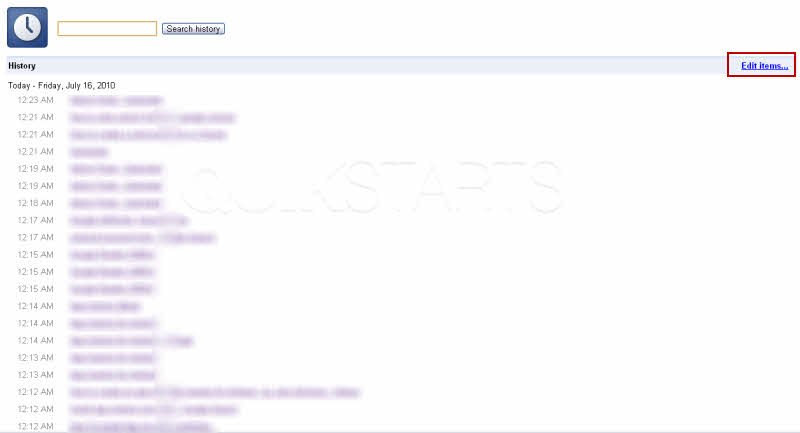
You should now see your web history. Click the "Edit Items" button in the upper right hand corner of the browser.
5
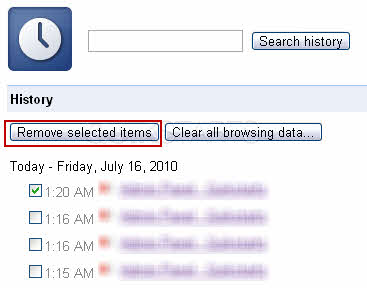
Place check marks in the boxes next to the pages that you want to clear from the browsers web history and click the "Remove selected items" button.
Note :
Click the \
6
Confirm that you want to delete the web pages from you history in the popup box that should appear.7
When you have cleared all of the web history that you want, click the "Done removing items" button in the upper right hand corner of the screen. Note :You should be returned to the original screen, which you can close.
8
This task should be completed. If you did not meet your objective, review and repeat the steps.
comments powered by Disqus
 Ask a question or provide an answer