






This guide is part of the Google Chrome series
1.
Add a Facebook button to your toolbar in Chrome
2. Clear search history in Chrome ver 12.0.742.112
3. Have the same tabs open when Chrome is started
4. How to bookmark all tabs in Chrome
5. How to check your Google Chrome version
6. How to clear certain pages from web history
7. How to clear search history in Google Chrome
8. How to create a send email link in Chrome
9. How to install Angry Birds for the Chrome browser
10. How to install email extension for Chrome
2. Clear search history in Chrome ver 12.0.742.112
3. Have the same tabs open when Chrome is started
4. How to bookmark all tabs in Chrome
5. How to check your Google Chrome version
6. How to clear certain pages from web history
7. How to clear search history in Google Chrome
8. How to create a send email link in Chrome
9. How to install Angry Birds for the Chrome browser
10. How to install email extension for Chrome
Make: Google
Model / Product: Chrome
Version: 5.0.357.55
Objective / Info: Learn how to clear the search history that is stored in the Google Chrome web browser. Any toolbars you have installed may have separate search history that this process will not clear.
Model / Product: Chrome
Version: 5.0.357.55
Objective / Info: Learn how to clear the search history that is stored in the Google Chrome web browser. Any toolbars you have installed may have separate search history that this process will not clear.
1
Launch Chrome by double left clicking the desktop icon.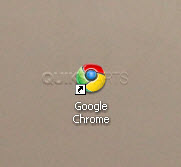
2
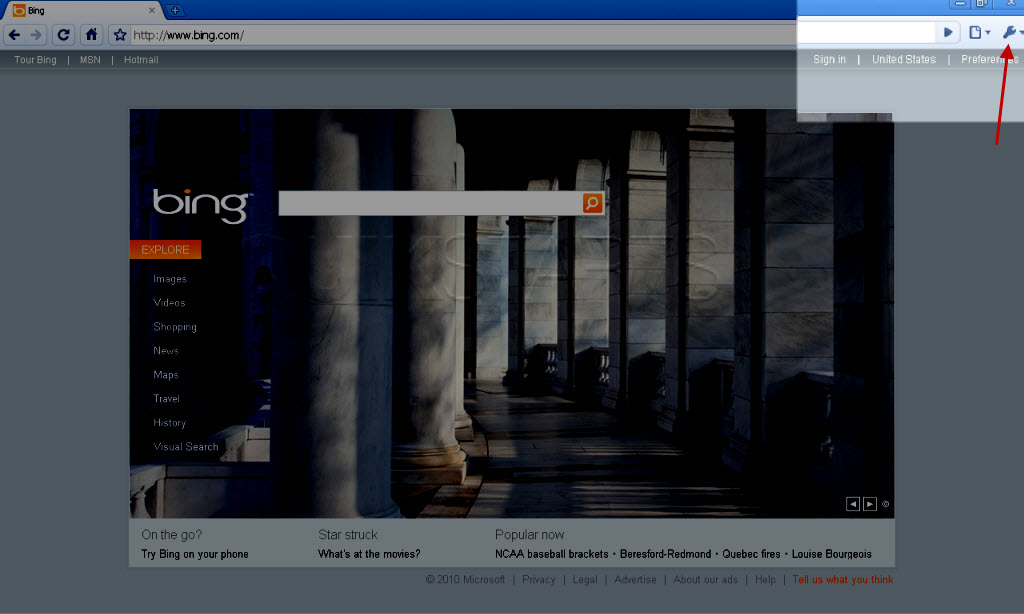
Click on the wrench icon in the upper right hand corner.
3
Select "Options" from the menu.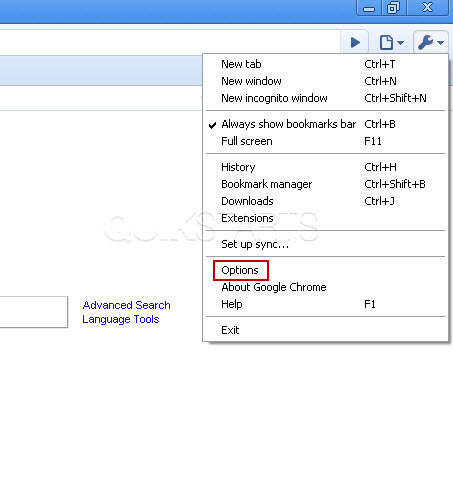
4
Click the "Clear browsing history" checkbox and select the time frame of history you want to clear.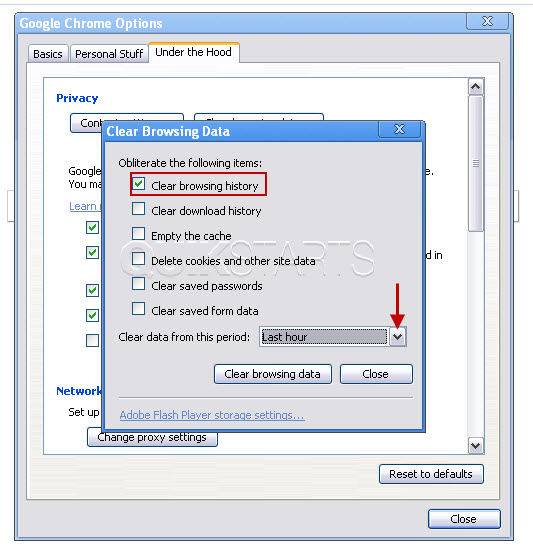
5
Select "Everything" if you want to remove all of your history.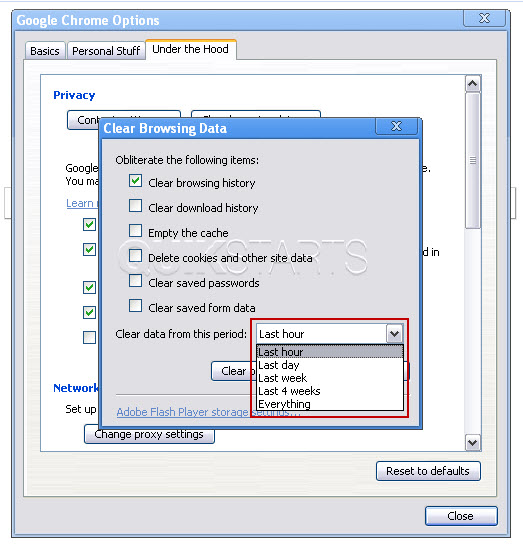
6
Click the "Clear browsing data" button.
7
Click the close button.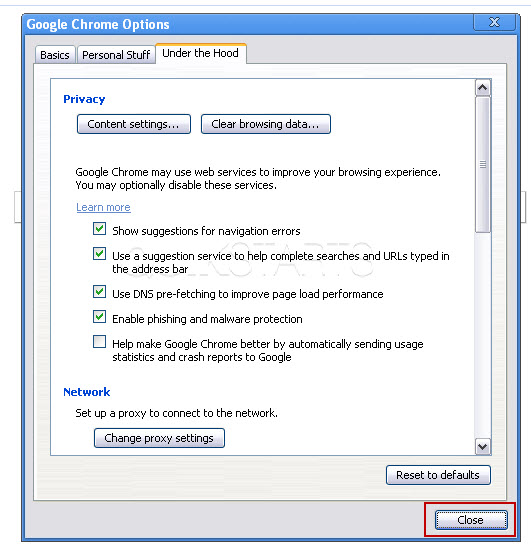
8
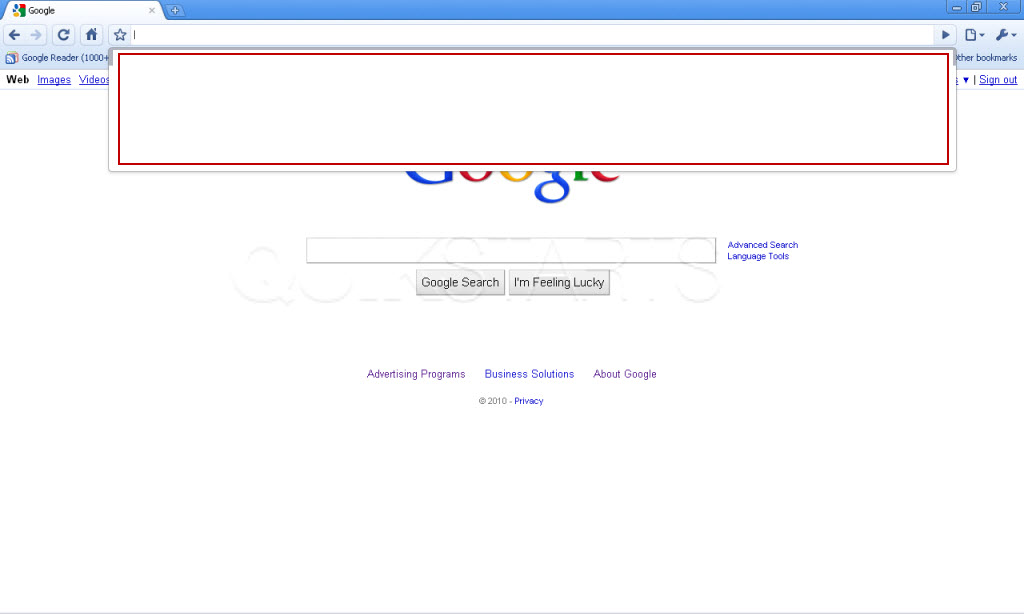
Your browser search history should be cleared.Click in the address bar and press any key to check for any history.
Note :
If you selected any option other than "Everything" in step 6 above, you will still likely see some data in the history.

comments powered by Disqus
 Ask a question or provide an answer