






This guide is part of the Microsoft Publisher 2003 series
Make: Microsoft
Model / Product: Microsoft Office Publisher
Version: 2003
Objective / Info: Use Microsoft Publisher To Write an Email.
Model / Product: Microsoft Office Publisher
Version: 2003
Objective / Info: Use Microsoft Publisher To Write an Email.
1
First when you open up Microsoft Publisher 2003 you should see on the sidebar a section that says "New Publication". Each section has a drop down Menu and it will provide you with the templates that you would like to use. Click on website and E-mails drop down menu.2
Once You have clicked on that, now click on E-mail and then click on letter. Note :Depending on what style you need you may need to look into another quikstarts guide.
3
You will need to select a template. Note :This is your choice but to show you how to do it I have selected the Bounce Template.
4
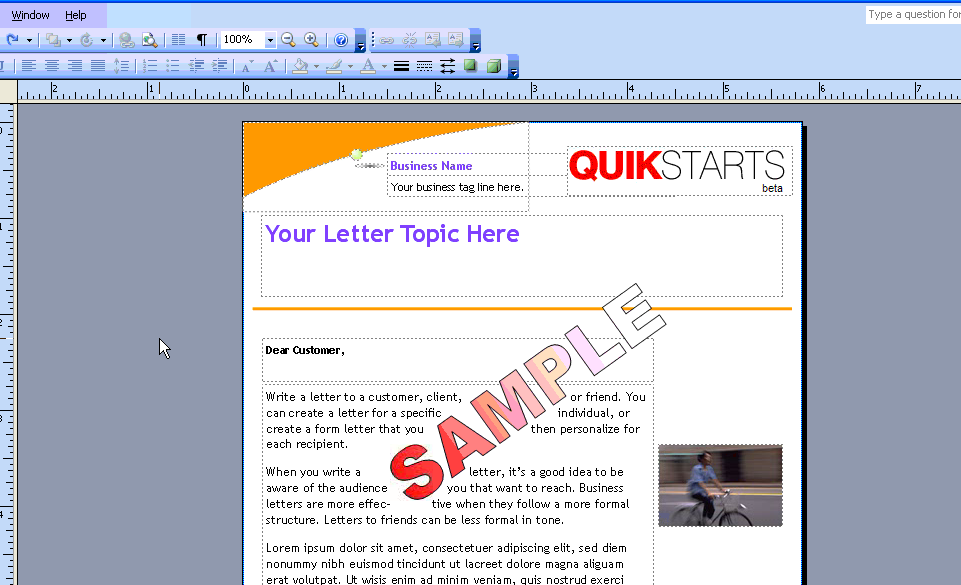
Now You click on each text box and edit the text in there to what you wanted to say & Add a picture to fix the company logo slot to yours. If you do not have a logo and want to get rid of it, just click on it and then press delete. After you are finished editing you are ready for the next step.
5
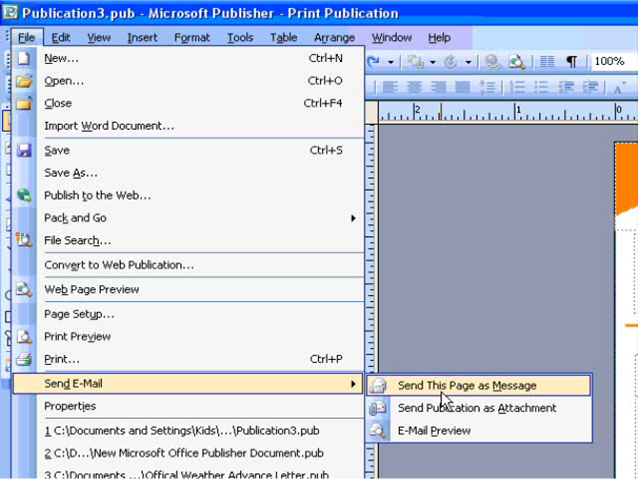
Next go To the File Tab and select "Send E-Mail" and Scroll over to "Send This Page As Message" and click on it.
Note :
This step only works if you use e-mail trough Microsoft Outlook! Others such as GMail & Yahoo will not work unless they are tied into Microsoft Outlook!
6
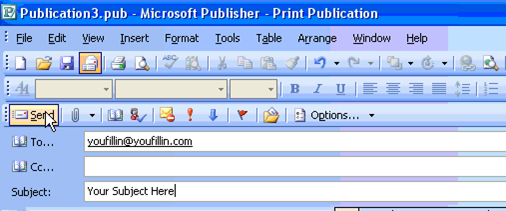
Now just type in who you want to send it in the "to" slot, bar and then press send at the top. And You are done!

comments powered by Disqus
 Ask a question or provide an answer