






This guide is part of the Skype series
1.
Download and install Skype on a Android Tmobile G2
2. How to add people to your Skype contact list
3. How to download and install Skype
4. How to make a free Skype call
5. How to make a free Skype call on the G2
6. How to setup Skype
7. How to use Skype
2. How to add people to your Skype contact list
3. How to download and install Skype
4. How to make a free Skype call
5. How to make a free Skype call on the G2
6. How to setup Skype
7. How to use Skype
Make: Skype
Model / Product: Windows XP PC
Version: 4.2.0.169
Objective / Info: Make a call to another person using Skype for free.
Model / Product: Windows XP PC
Version: 4.2.0.169
Objective / Info: Make a call to another person using Skype for free.
1
Start Skype by clicking the Skype icon on the desktop or start menu.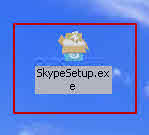
2
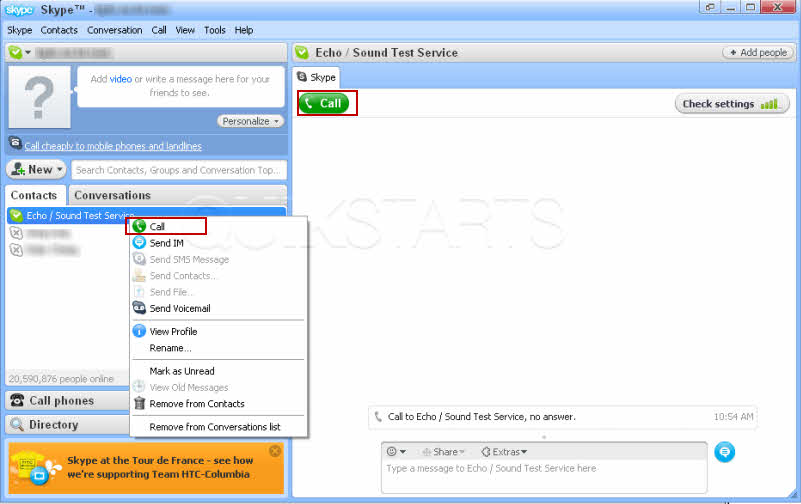
Right click on the name of the person that you want to contact on the left vertical menu and click the "call" button.You can alternately click the call button that should appear on the far right.
3
Be advised that the icons next to the name indicate the status of the person. If the icon is green with a white check mark, then the person is online with Skype and available. Note :
The yellow icon indicates the person is in "Away" status and the red icon indicates the person is in "Do Not Disturb" status. If you see any of these 3 icons, then the call is free.

4
Should you see these icons next to a users name, then the calls are subject to charges.
5
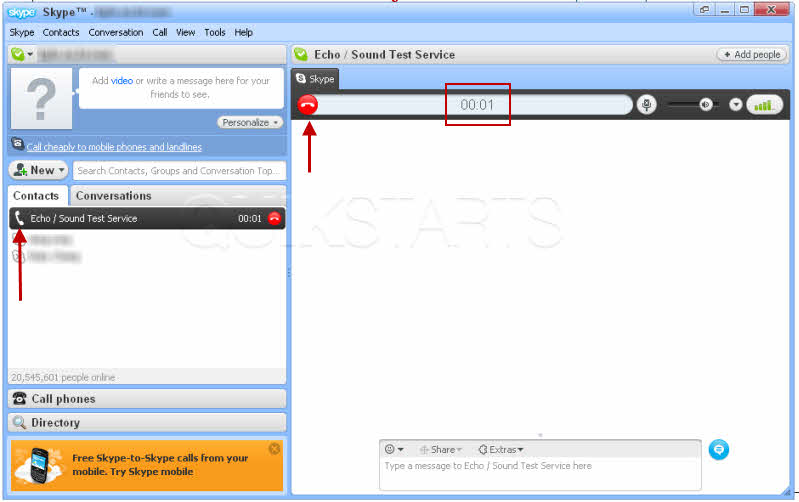
If the person answers your call, you can begin your conversation. The phone icon that now appears next to the users name on the left menu indicates a call in progress. The numbers on the right indicate the length of the call.
Note :
Press the red phone icon to end the call.
6
This task should now be completed, if not review the steps.
comments powered by Disqus
 Ask a question or provide an answer