






This guide is part of the Buffer series
1.
How to install the Buffer extension for Chrome
2. How to retweet with Buffer
3. How to schedule tweets with buffer
4. How to sign up for buffer
5. How to tweet from the buffer interface
6. How to use Buffer
7. Post a tweet using the Buffer Chrome extension
8. Schedule tweets from the buffer web interface
9. Tweet selected text with the Buffer for Chrome
2. How to retweet with Buffer
3. How to schedule tweets with buffer
4. How to sign up for buffer
5. How to tweet from the buffer interface
6. How to use Buffer
7. Post a tweet using the Buffer Chrome extension
8. Schedule tweets from the buffer web interface
9. Tweet selected text with the Buffer for Chrome
Make: Buffer
Model / Product: Buffer
Version: Chrome Extension
Objective / Info: Learn how to schedule a tweet for a future time with buffer via the buffer chrome extension. Twitter, Buffer and the Buffer Chrome extension are required; see goo.gl for the extension.
Model / Product: Buffer
Version: Chrome Extension
Objective / Info: Learn how to schedule a tweet for a future time with buffer via the buffer chrome extension. Twitter, Buffer and the Buffer Chrome extension are required; see goo.gl for the extension.
1
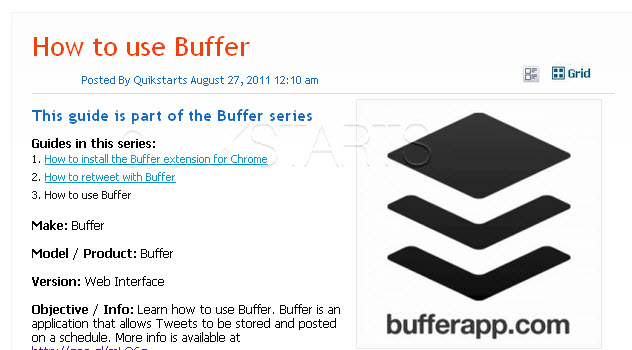
Visit a website that contains content that you want to schedule a tweet for.
Note :
In this example we are using a guide on on quikstarts about buffer.
2
Click the buffer icon in the upper left hand corner of the browser.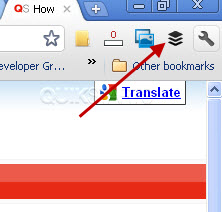
3
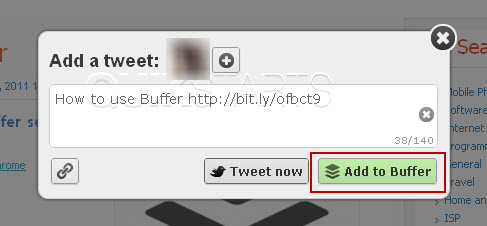
Click the "Add to Buffer" button.
Note :
Make edits such as changing text and adding hash tags if you want to before clicking the button.
4
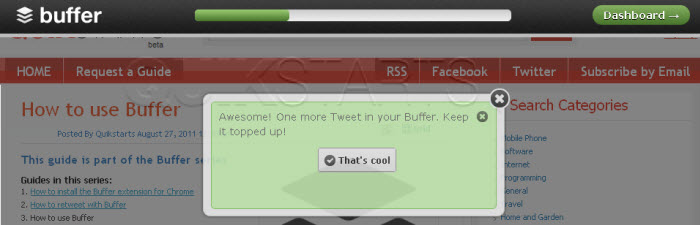
You should see another pop up box that should disappear on its own after a couple of seconds.
5
If you log into buffer at bufferapp.com and select "my buffer" on the menu, you should see the tweet that you just scheduled and the time that it will tweet.

6
This task should now be complete. If not, review and repeat the steps as needed. Submit any questions using the section at the bottom of this page.
comments powered by Disqus
 Ask a question or provide an answer