






This guide is part of the Buffer series
1.
How to install the Buffer extension for Chrome
2. How to retweet with Buffer
3. How to schedule tweets with buffer
4. How to sign up for buffer
5. How to tweet from the buffer interface
6. How to use Buffer
7. Post a tweet using the Buffer Chrome extension
8. Schedule tweets from the buffer web interface
9. Tweet selected text with the Buffer for Chrome
2. How to retweet with Buffer
3. How to schedule tweets with buffer
4. How to sign up for buffer
5. How to tweet from the buffer interface
6. How to use Buffer
7. Post a tweet using the Buffer Chrome extension
8. Schedule tweets from the buffer web interface
9. Tweet selected text with the Buffer for Chrome
Make: Buffer
Model / Product: Buffer
Version: Web Interface
Objective / Info: Learn how to tweet selected text from an article and pass it into Twitter with Buffer using the Chrome extension. The Chrome extension is required goo.gl
Model / Product: Buffer
Version: Web Interface
Objective / Info: Learn how to tweet selected text from an article and pass it into Twitter with Buffer using the Chrome extension. The Chrome extension is required goo.gl
1
Visit the webpage that contains the article that you would like to tweet with Buffer.
Note :
In this example, we are using a Chicago Tribune story about Obama and loan relief

2
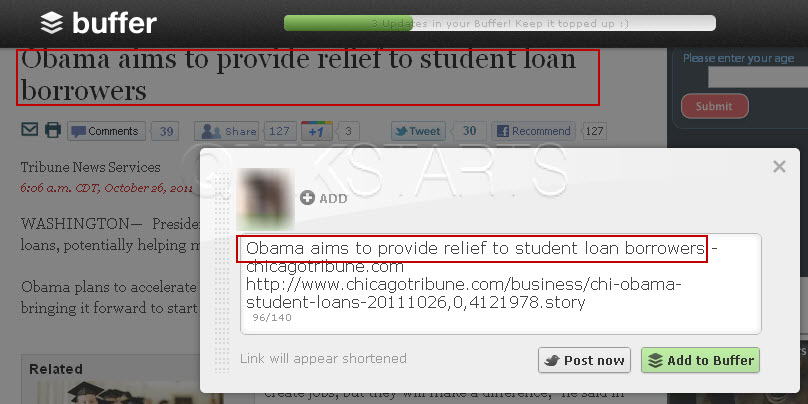
Normally you would press the Chrome Buffer extension button in the upper right hand corner of the browser and the title of this story would be passed along with the URL into the Buffer pop-up box for tweeting.
3
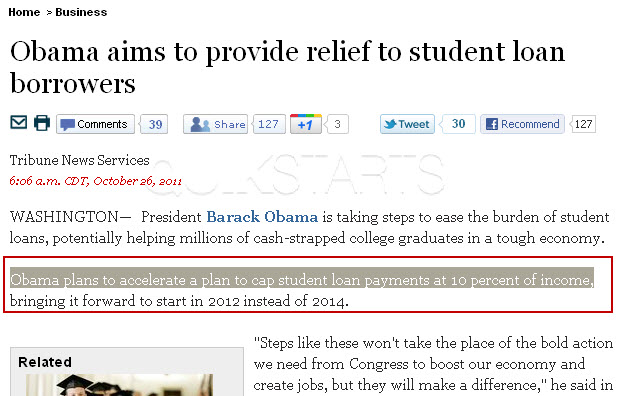
In order to have selected text show instead of the article title, click and drag text on the page that you would like to include in the tweet.
4
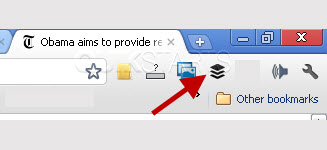
Press the Buffer extension button in Chrome in the upper right hand corner of the browser.
5
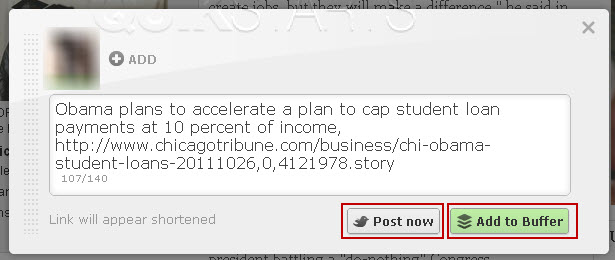
The selected text should now be included in the pop up box to be passed to Buffer for tweeting.

6
Press the "Add to Buffer" to schedule a Tweet for later or press the "Post Now" button to Tweet via Buffer now.
7
This task should now be complete. If not, review and repeat the steps as needed. Submit any questions using the section at the bottom of this page.
comments powered by Disqus
 Ask a question or provide an answer