






This guide is part of the Internet Explorer 9 series
1.
Add a Facebook button to your toolbar in IE 9
2. Download and install Internet Explorer 9
3. How to clean temporary Internet files in IE 9
4. How to clear search history in Internet Explorer 9
5. How to clear the browser cache in IE 9
6. How to use Internet Explorer 9
7. Increase the text size in Internet Explorer 9
8. Work around for accessing monster.com in IE 9
2. Download and install Internet Explorer 9
3. How to clean temporary Internet files in IE 9
4. How to clear search history in Internet Explorer 9
5. How to clear the browser cache in IE 9
6. How to use Internet Explorer 9
7. Increase the text size in Internet Explorer 9
8. Work around for accessing monster.com in IE 9
Make: Microsoft
Model / Product: Internet Explorer
Version: 9 beta
Objective / Info: Clear the browser cache.
Model / Product: Internet Explorer
Version: 9 beta
Objective / Info: Clear the browser cache.
1
Open the browser by clicking the 'e' logo on your desktop or task bar.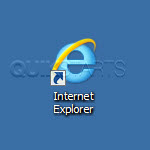
2
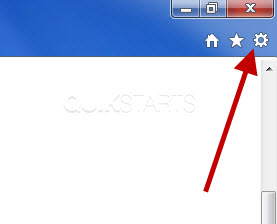
In the upper right hand corner of the browser, click the icon that looks like a small gear which is the "Tools" button.
3
Click the "Internet Options" link.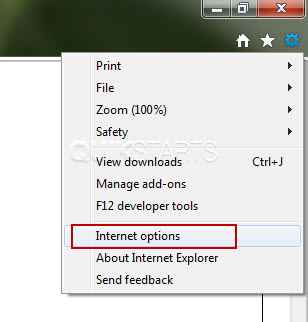
4
In the browsing history section, click the "Delete" button.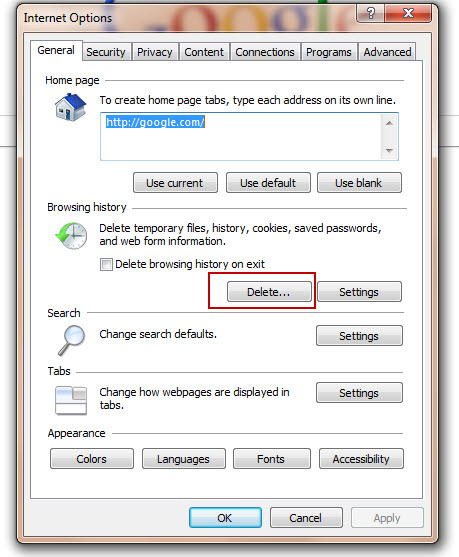
5
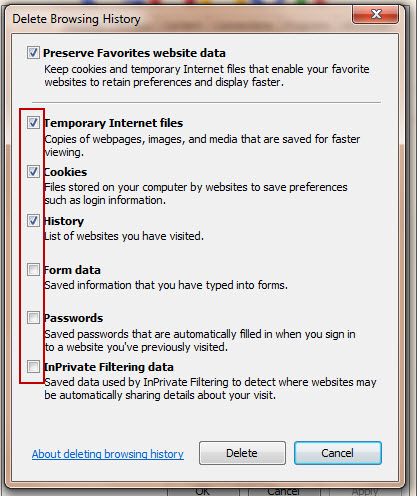
Place a check mark in the boxes for the data that you wish to delete. At this point, you select the type of data you want to clear. Note :
I recommend you read the descriptions before selecting.
6
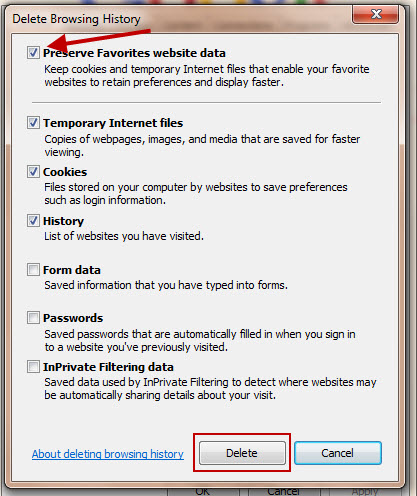
After selecting the data you want to remove, press the "delete" button. Note :
Check the first box to save your favorites cache.
7
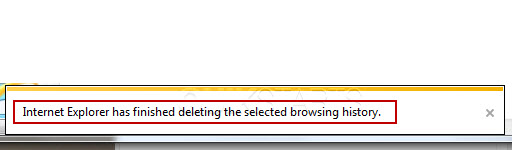
Click the "ok" button on the window opened in step 4 above. You should see a notice at the bottom of the page stating that the selected browsing history has been cleared.
8
This task should now be complete. If not, review and repeat the steps as needed. Submit any questions using the section at the bottom of this page.
comments powered by Disqus
 Ask a question or provide an answer