





This guide is part of the Paypal series
Make: Paypal
Model / Product: Business - Website Payments Pro
Version: 6222010
Objective / Info: Process a credit card transaction using the virtual terminal.
Model / Product: Business - Website Payments Pro
Version: 6222010
Objective / Info: Process a credit card transaction using the virtual terminal.
1
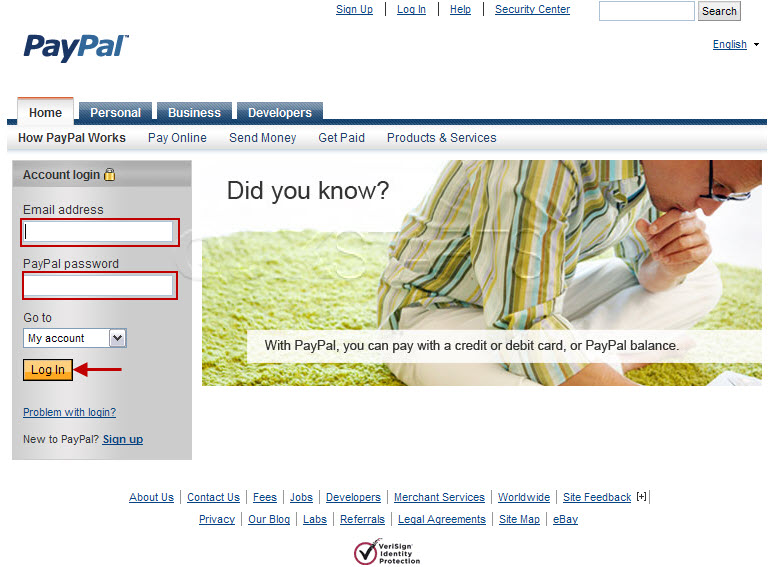
Visit www.paypal.com. Complete the username and password fields and press the "Log In" button to log in.
Note :
A Paypal business account with virtual terminal is required.
2
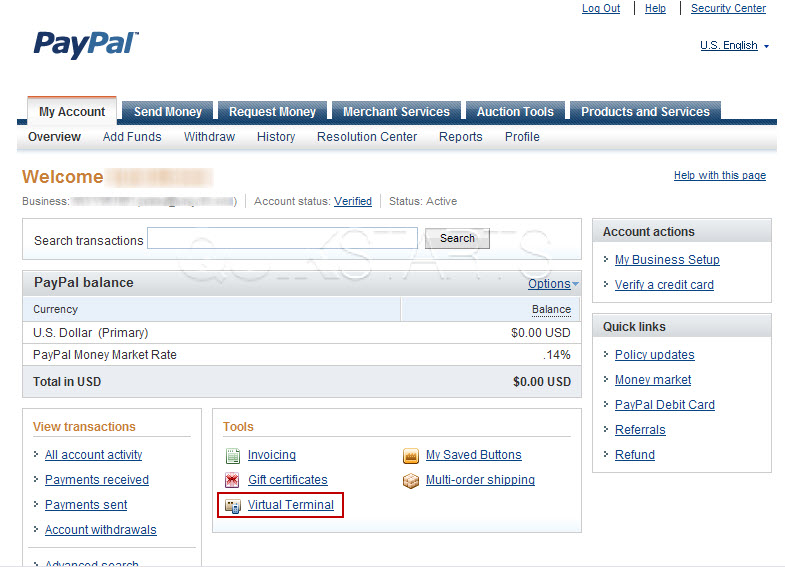
Click the virtual terminal link.
Note :
If you do not see a virtual terminal link, then you may not have a virtual terminal account.
3
Complete all of the required fields.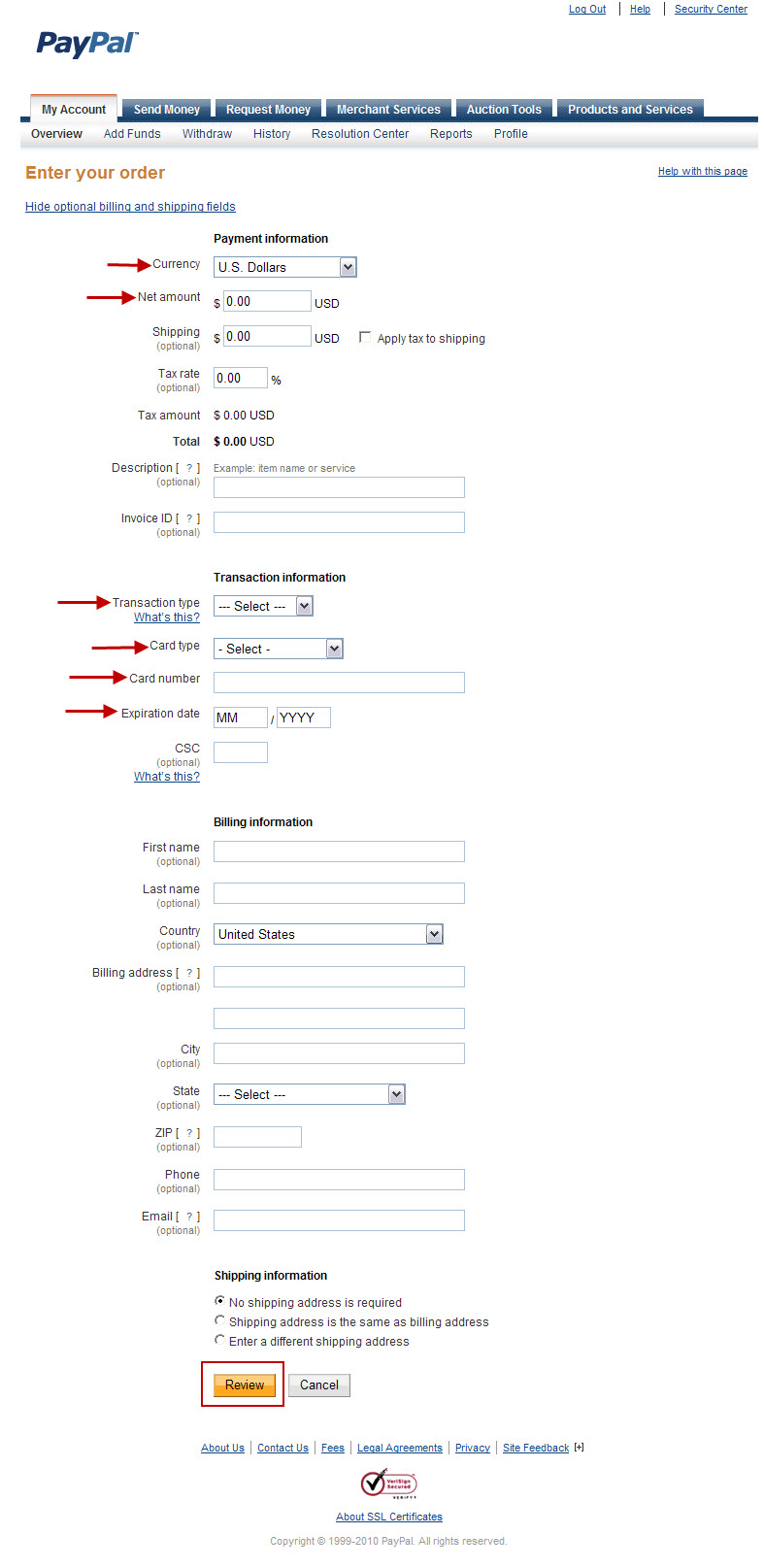
4
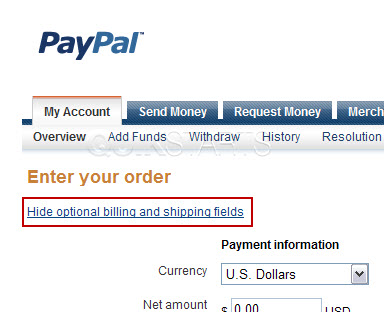
Click the "Hide optional billing and shipping fields" link and only the required fields will be shown to you.
Note :
This is an optional step.
5
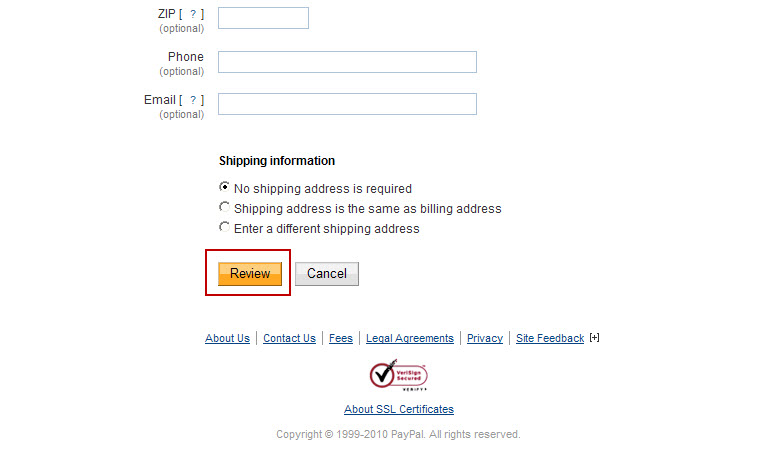
After you have completed all of the required fields, press the "Review" button.
6
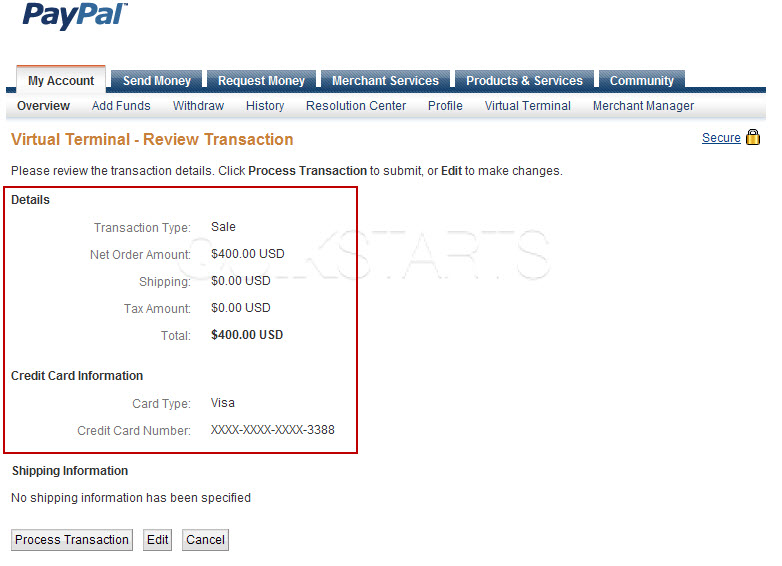
The review screen should be displayed. Review your transaction for any errors.
7
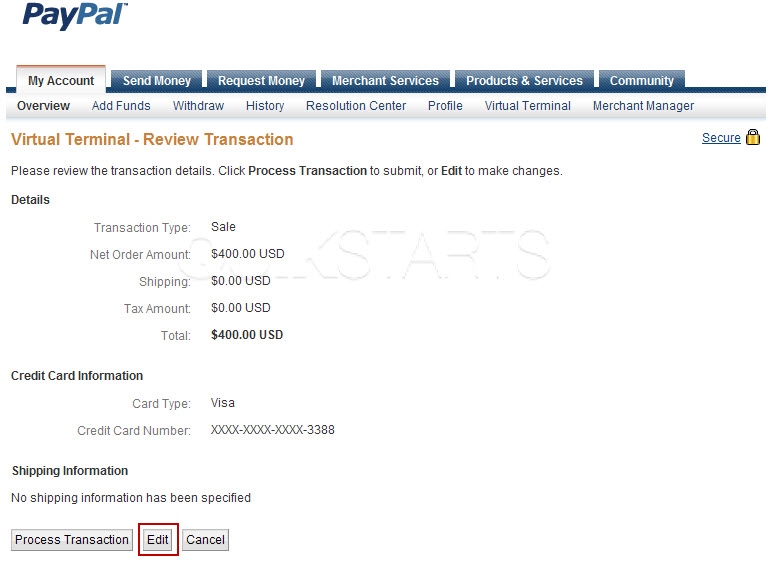
Click the "Edit" button to go back and make any changes.
8
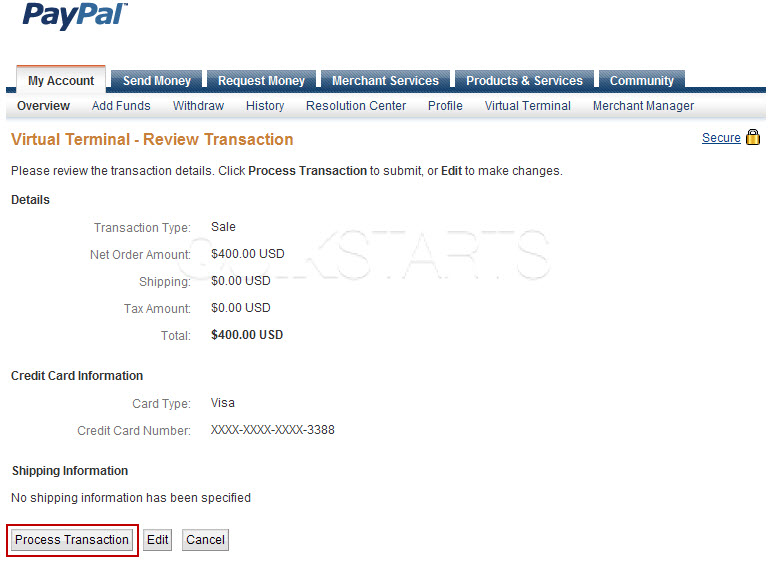
After your review is complete and you are ready to process the transaction, click the "Process Transaction" button.
9
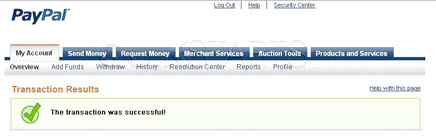
You should see a "Success" message if the process completes.
10
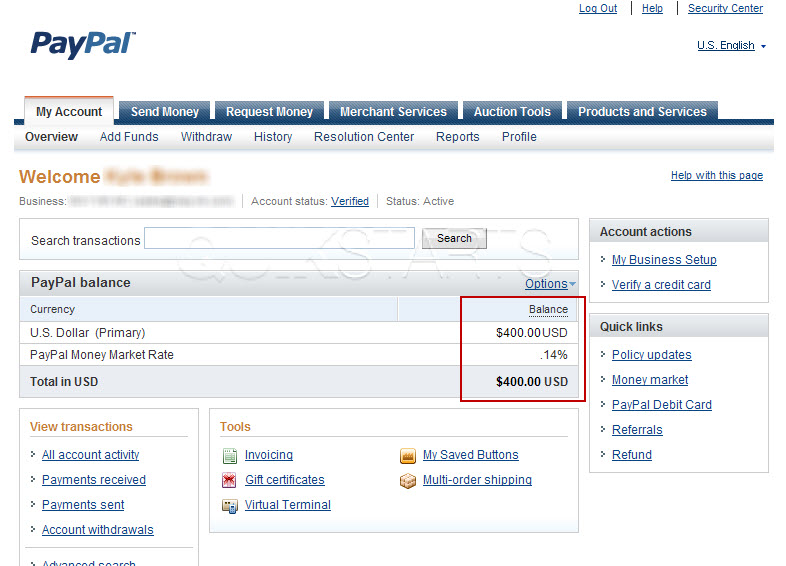
The funds should appear in your accounts main page.
Note :
If you are not redirected to the main page automatically, go to the main page by clicking the "My Account" link in the upper left hand corner of the site.

comments powered by Disqus
 Ask a question or provide an answer