





This guide is part of the CamStudio series
1.
Download Camstudio screen recording software
2. Enable audio microphone recording in CamStudio
3. How to install CamStudio
4. How to use camStudio
2. Enable audio microphone recording in CamStudio
3. How to install CamStudio
4. How to use camStudio
Make: CamStudio
Model / Product: Cam Studio Streaming Video Software
Version: 2.0
Objective / Info: By default audio recording may not be activated in CamStudio meaning your recordings will not have any sound. Learn how to activate the audio recording feature.
Model / Product: Cam Studio Streaming Video Software
Version: 2.0
Objective / Info: By default audio recording may not be activated in CamStudio meaning your recordings will not have any sound. Learn how to activate the audio recording feature.
1
Double left click the CamStudio icon on your desktop or start menu.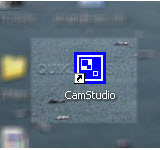
2
Click the "Option" button on the menu bar.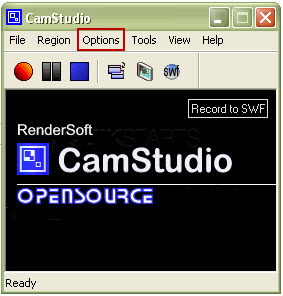
3
Click the "Record audio from microphone" option on the drop down menu.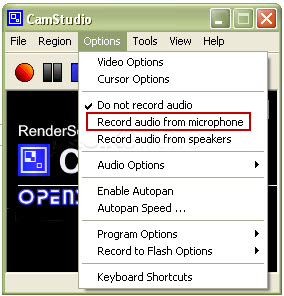
4
After the selection has been made, the drop down menu should close. This feature should be enabled going forward.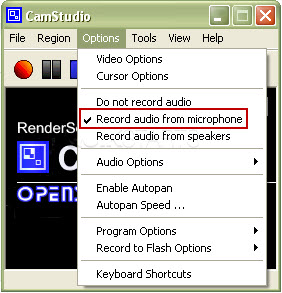
5
This task should now be complete. If not, review and repeat the steps as needed. Submit any questions using the section at the bottom of this page.
comments powered by Disqus
 Ask a question or provide an answer