





This guide is part of the Internet Explorer 8 series
1. Add a Facebook button to your toolbar in IE 8
2. How to block websites in Internet explorer 8
3. How to clean temporary Internet files in IE 8
4. How to clear search history in Internet Explorer 8
5. How to clear the browser cache in IE 8
2. How to block websites in Internet explorer 8
3. How to clean temporary Internet files in IE 8
4. How to clear search history in Internet Explorer 8
5. How to clear the browser cache in IE 8
Make: Microsoft
Model / Product: Internet Explorer
Version: 8
Objective / Info: Learn how to add Facebook to your Internet Explorer 8 Favorites toolbar. The favorites toolbar must be enabled for this guide to work. See step 1.
Model / Product: Internet Explorer
Version: 8
Objective / Info: Learn how to add Facebook to your Internet Explorer 8 Favorites toolbar. The favorites toolbar must be enabled for this guide to work. See step 1.
1
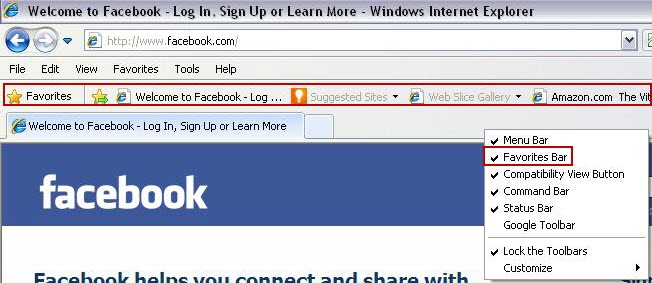
Make sure that the favorites toolbar is enabled to show in your browser by right clicking in a blank space on the menu bar.
2
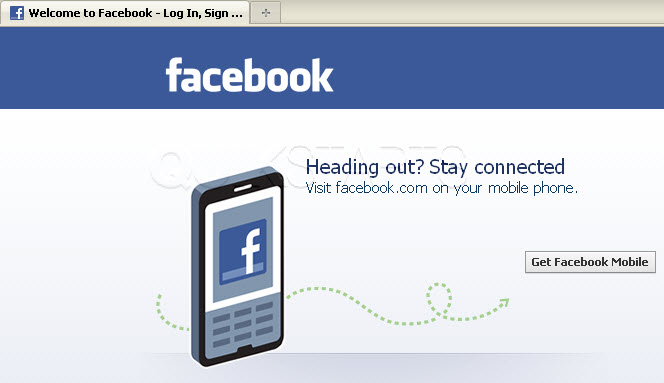
Visit Facebook.com in your browser.
Note :
Choosing a page besides Facebook.com, like Facebook.com/someotherpage may result in problems when you are not logged in to Facebook.
3
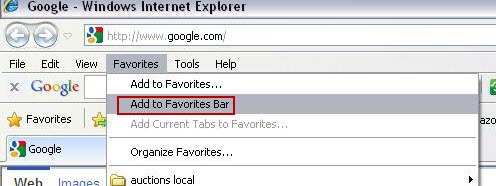
Click the "Favorites" option on the toolbar, then click the "Add to Favorites Bar" option from the drop down menu.
4
The Facebook icon should appear on your Favorites toolbar along with some text. From this point forward, clicking this button should take you to Facebook.com

5
This task should now be complete. If not, review and repeat the steps as needed. Submit any questions using the section at the bottom of this page.
comments powered by Disqus
 Ask a question or provide an answer