





This guide is part of the Microsoft Word 2019 series
1.
How to add a footnote in Word 2019
2. How to add AutoFormat to the toolbar in Word 2019
3. How to auto format a document in Word 2019
4. How to avoid replacing selected text in Word 2019
5. How to create a Drop Cap in Word 2019
6. How to disable hyperlinks in Word 2019
7. How to disable spellcheck in Word 2019
8. How to hide or view the ribbon in Word 2019
9. How to hide text in Word 2019
10. How to insert a screenshot in Word 2019
2. How to add AutoFormat to the toolbar in Word 2019
3. How to auto format a document in Word 2019
4. How to avoid replacing selected text in Word 2019
5. How to create a Drop Cap in Word 2019
6. How to disable hyperlinks in Word 2019
7. How to disable spellcheck in Word 2019
8. How to hide or view the ribbon in Word 2019
9. How to hide text in Word 2019
10. How to insert a screenshot in Word 2019
Make: Microsoft
Model / Product: Word
Version: 2019
Objective / Info: Learn how to avoid replacing selected text when typing in the 2019 version of Microsoft Word.
Model / Product: Word
Version: 2019
Objective / Info: Learn how to avoid replacing selected text when typing in the 2019 version of Microsoft Word.
1
Open Word by double left clicking the icon on the desktop or start menu.
2
Click on "Options", which should make the "Word Options" box pop up.
3
Click on "Advanced".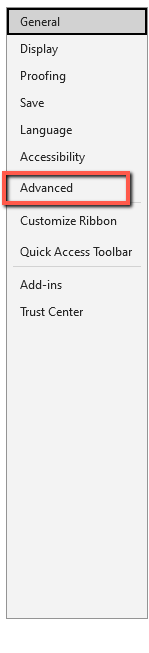
4
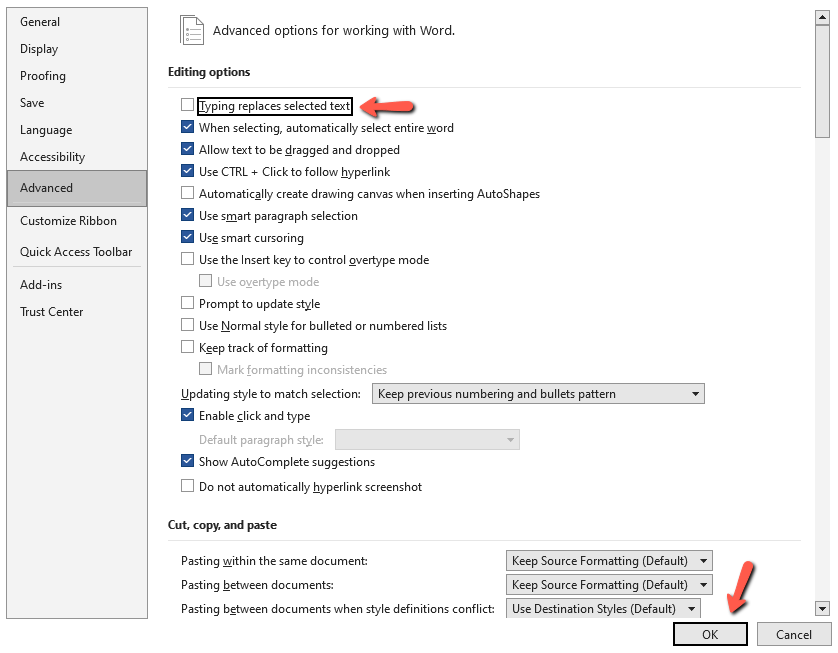
In the Editing Options section uncheck "Typing replaces selected text", and click "OK."
5
This task should be complete. Review the steps if you had any issues and try again. Submit questions or request for more guides in the questions section below.
comments powered by Disqus
 Ask a question or provide an answer