






This guide is part of the Animate PowerPoint 2010 series
1.
Change the slide advance speed in PowerPoint 2010
2. How to animate a shape in PowerPoint 2010
3. How to animate PowerPoint 2010
4. How to animate slide transition in PowerPoint 2010
5. How to animate text in PowerPoint 2010
6. Shooting star custom animation in PowerPoint
2. How to animate a shape in PowerPoint 2010
3. How to animate PowerPoint 2010
4. How to animate slide transition in PowerPoint 2010
5. How to animate text in PowerPoint 2010
6. Shooting star custom animation in PowerPoint
Make: Microsoft
Model / Product: PowerPoint
Version: 2010
Objective / Info: Learn to animate text in PowerPoint 2010.
Model / Product: PowerPoint
Version: 2010
Objective / Info: Learn to animate text in PowerPoint 2010.
1
Open PowerPoint by double left clicking the icon on the desktop start menu.
2
On your slide select the text box that you want to animate.
Note :
Be sure all of the text that you want to animate is in the same text box. You can use a different type animation by selecting other text boxes separately.
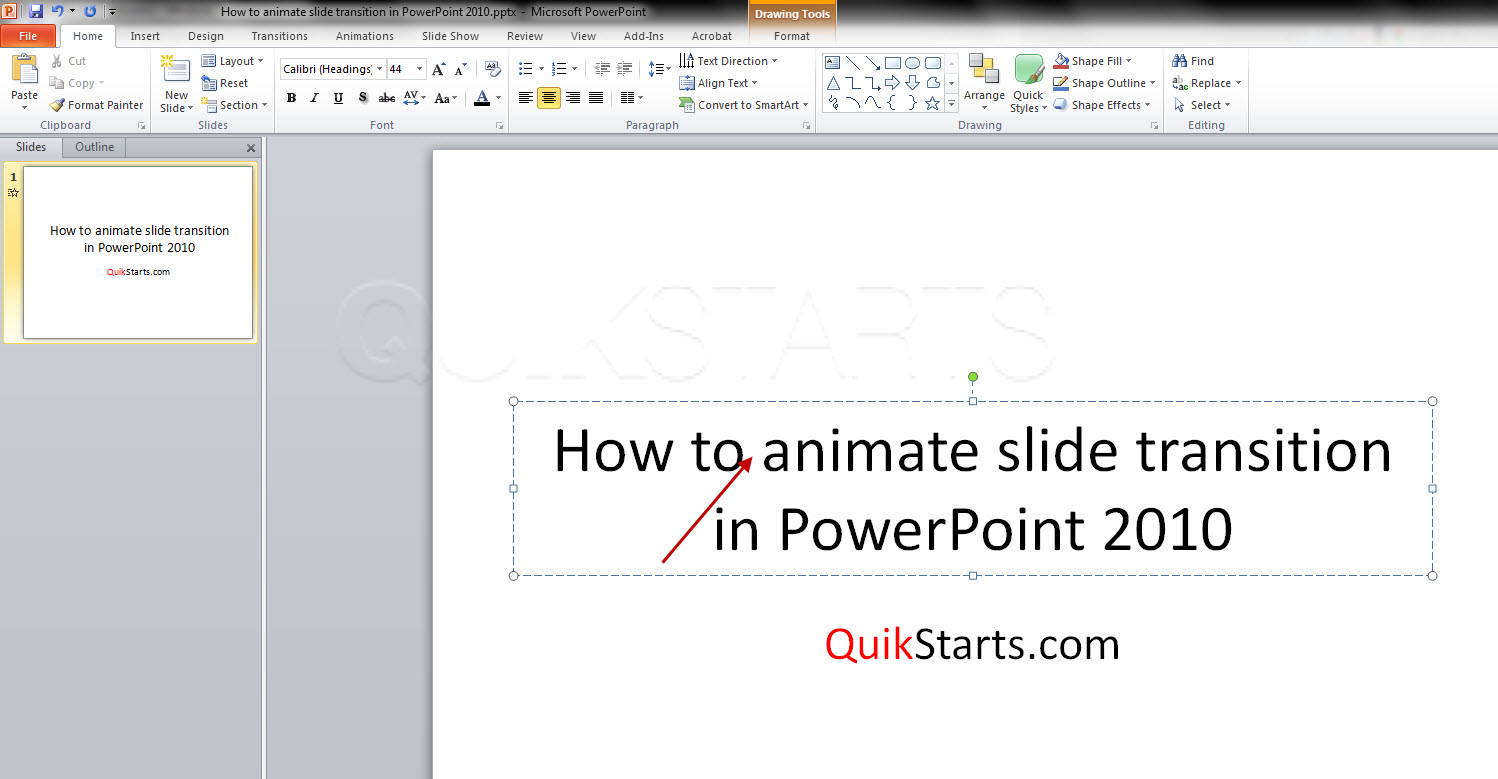
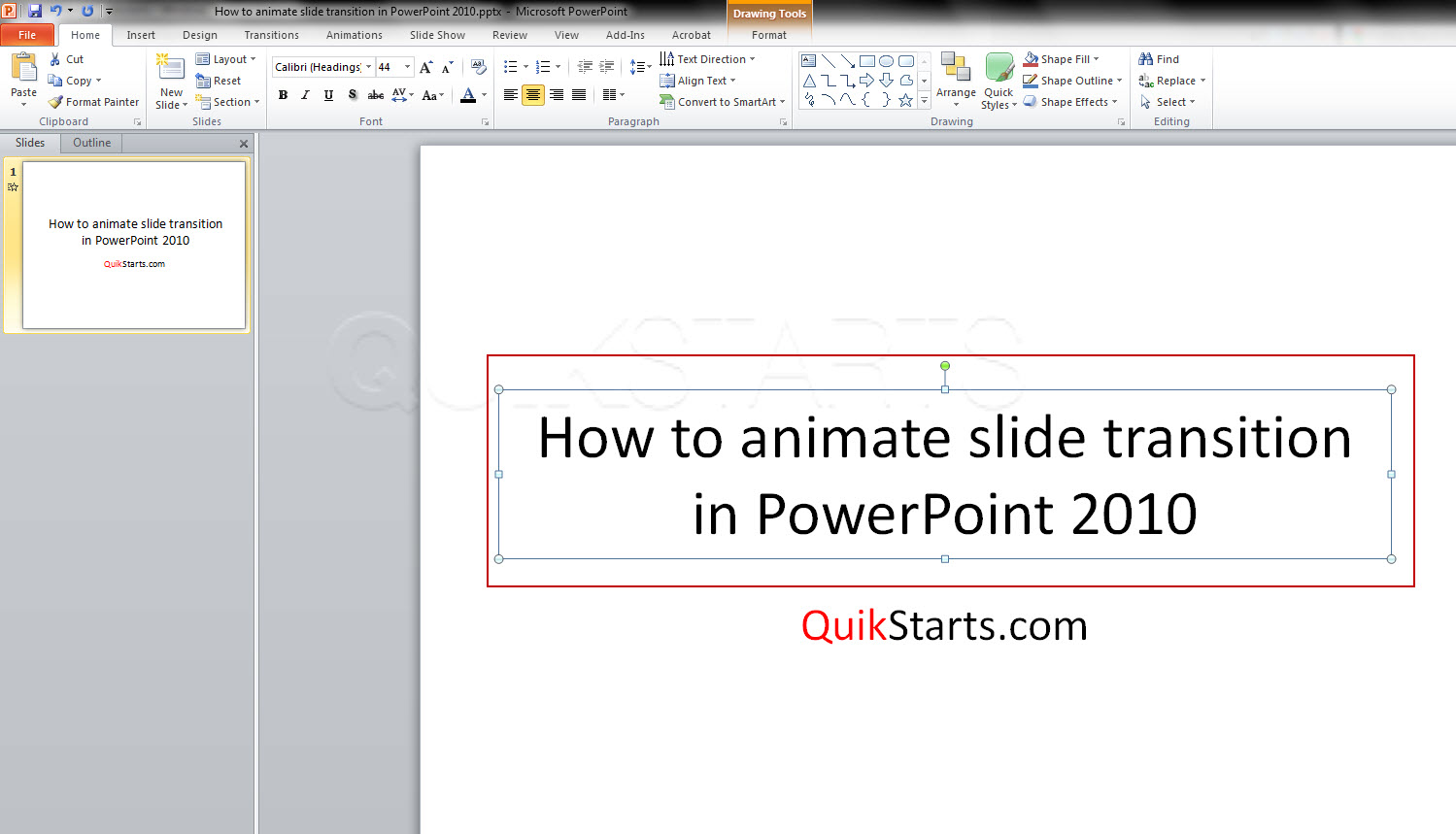
3
Select the text box by left clicking inside of it or around its edge.
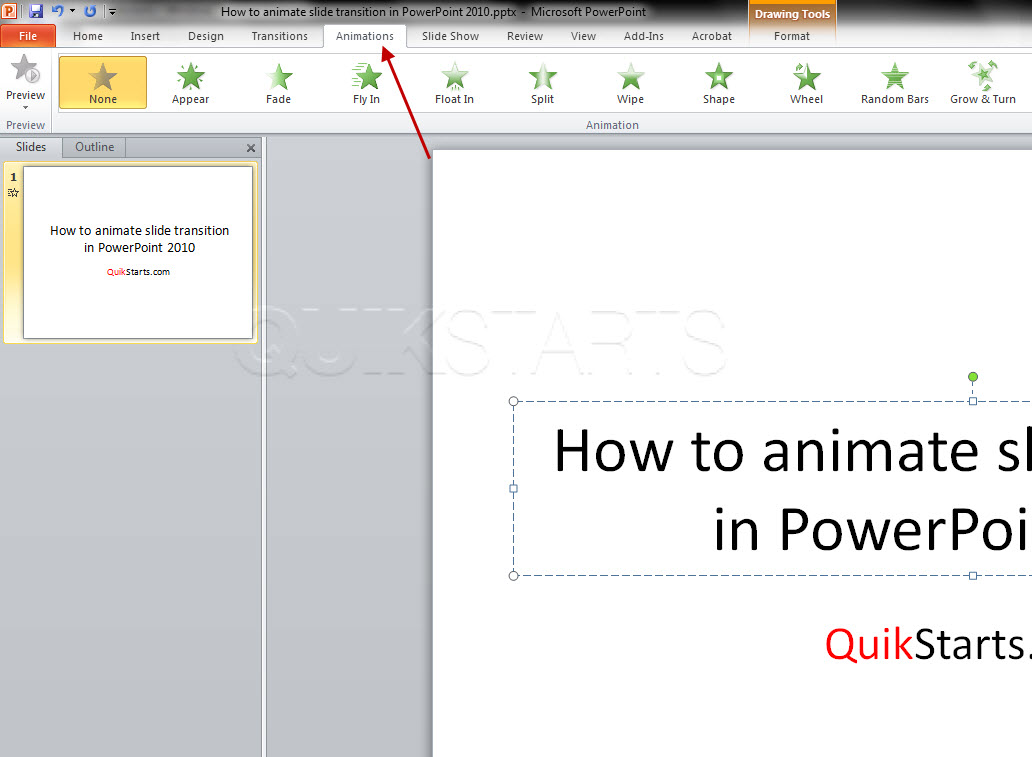
4
Click the "Animation" option form the menu.
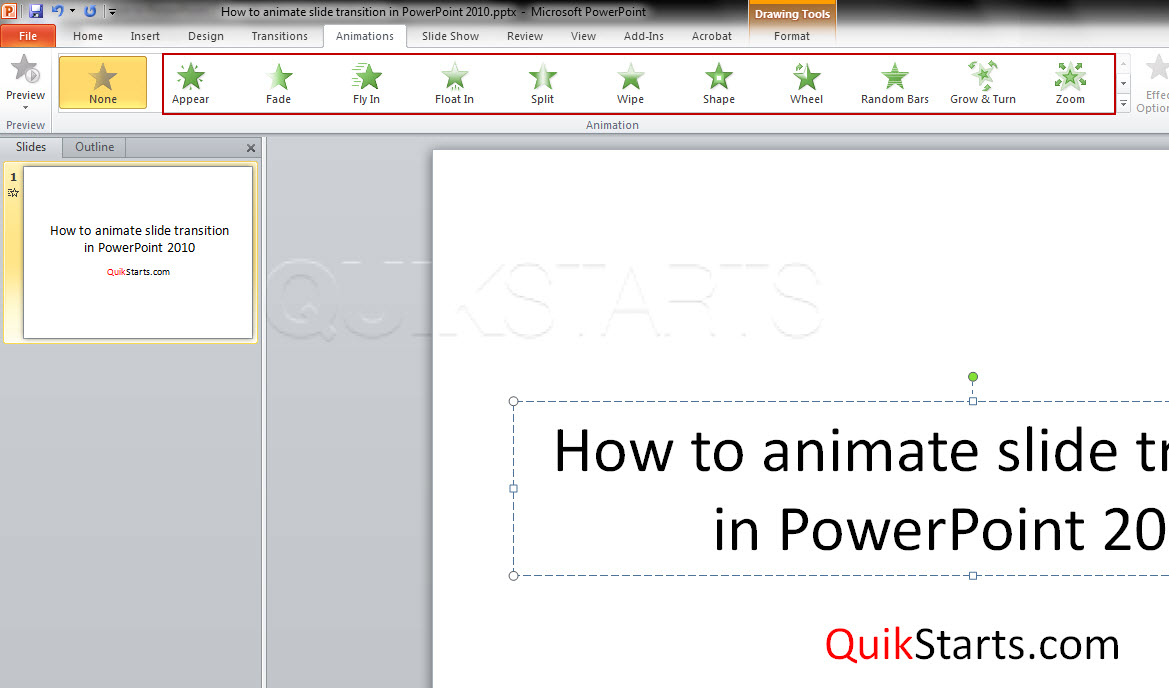
5
Roll your mouse over the "Animations" option that you want to use.You should see a preview of the animation. Click the animation that you want to use.
Note :
Because the title box is selected the animation is limited to all the text in the title box.
6
Click the bottom arrow to see more options.
Note :
Any animation applied to the title box will impact all of the text in it but when applied to a text box offers animation to each line of text in the box separately.

7
You should see the larger list of animation options. Select one that you like by clicking it. You can stop here or proceed for more animation options
Note :
Press the "F5" key to see a full screen preview. Press escape to get out of the slide show. .

8
If you want the animation to start automatically, look to the right of the "Advance Animation" section and click the drop-down menu.

9
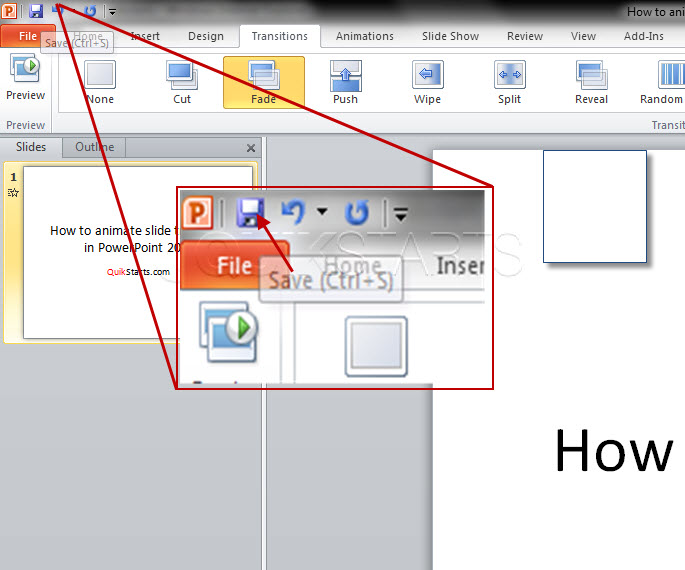
Save the file. You have completed this guide.

comments powered by Disqus
 Ask a question or provide an answer