






This guide is part of the Google Plus series
1.
Add more than one profile photo in Google Plus
2. Allow email from your profile page in Google Plus
3. Connect Google Plus to Klout
4. Disable google plus post comments before sharing
5. Disable the post resharing feature in Google Plus
6. How to add a spark in Google Plus
7. How to add a spark in Google Plus 9282011
8. How to block someone in Google Plus
9. How to change your display name in Google Plus
10. How to create circles in Google Plus
2. Allow email from your profile page in Google Plus
3. Connect Google Plus to Klout
4. Disable google plus post comments before sharing
5. Disable the post resharing feature in Google Plus
6. How to add a spark in Google Plus
7. How to add a spark in Google Plus 9282011
8. How to block someone in Google Plus
9. How to change your display name in Google Plus
10. How to create circles in Google Plus
Make: Google
Model / Product: Plus
Version: 7172011
Objective / Info: Google Circles allow you to organize contacts into groups for sharing across various Google products and services.
Model / Product: Plus
Version: 7172011
Objective / Info: Google Circles allow you to organize contacts into groups for sharing across various Google products and services.
1
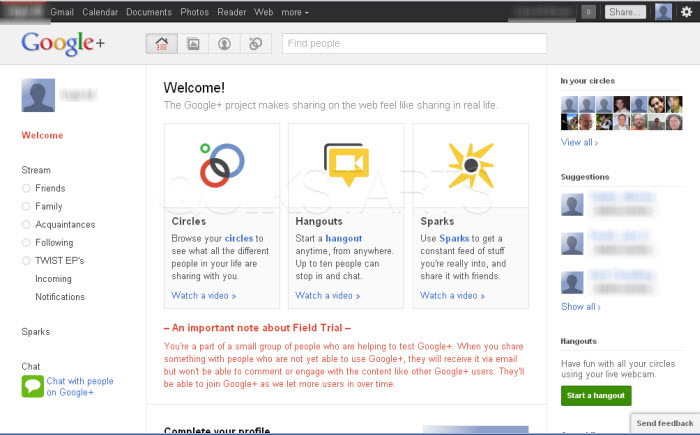
Visit plus.google.com
2
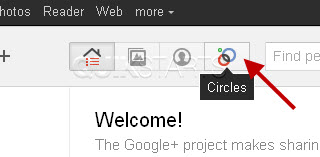
Click the circles icon.
3
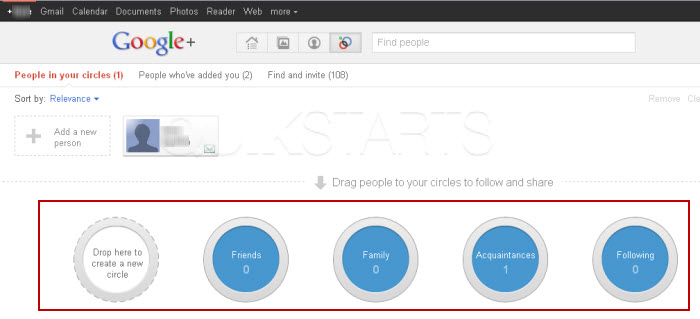
You should be directed to a page containing circles near the bottom and people who are in any existing circles at the top of the page.
4
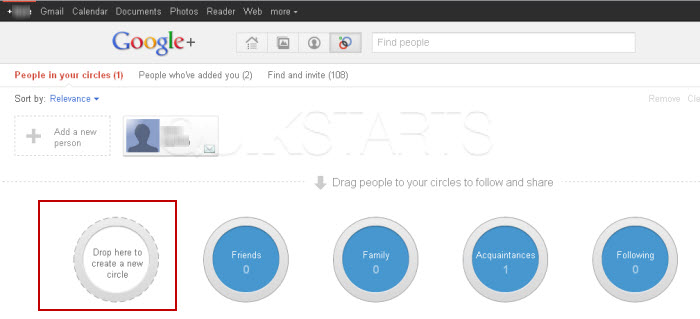
Click the "Drop here to create a new circle" circle icon.
Note :
An option at this point would be to click and drag existing friends into the "Drop here to create a new circle" circle icon.
5
The text should change to "Create Circle". Click the "Create Circle" icon.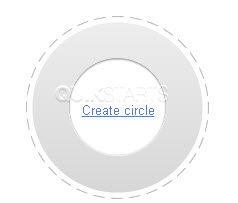
6
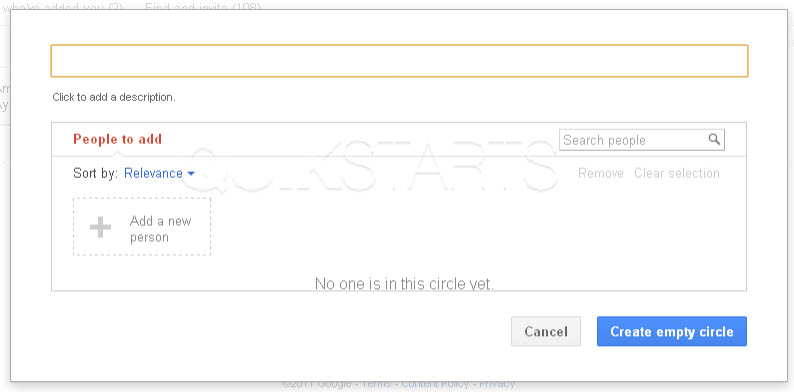
A new window should open.
7
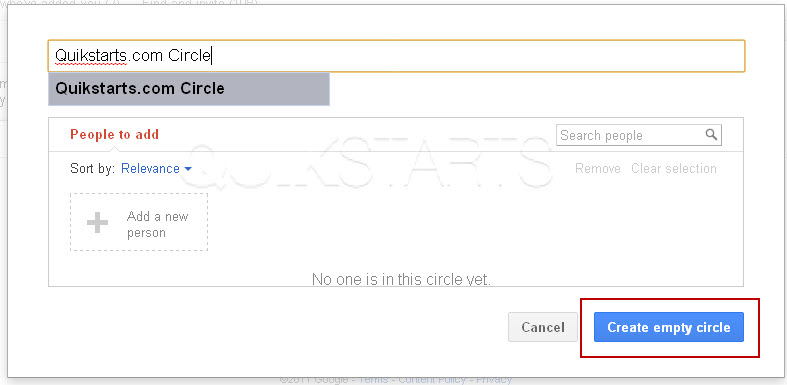
Type in a name for your new circle and click the "Create an empty circle" button.
Note :
An option at this point would be to click the "Add a new person" link to add friends to your circle.
8
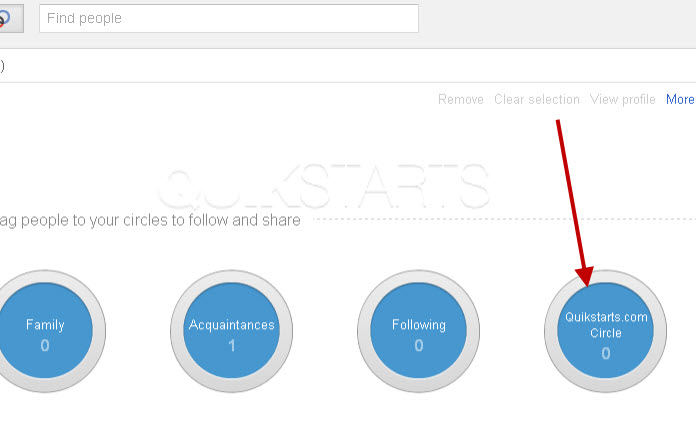
The new circle that you just created should appear in the list of circles.
9
This task should now be complete. If not, review and repeat the steps as needed. Submit any questions using the section at the bottom of this page.
comments powered by Disqus
 Ask a question or provide an answer