






This guide is part of the Google Plus series
1.
Add more than one profile photo in Google Plus
2. Allow email from your profile page in Google Plus
3. Connect Google Plus to Klout
4. Disable google plus post comments before sharing
5. Disable the post resharing feature in Google Plus
6. How to add a spark in Google Plus
7. How to add a spark in Google Plus 9282011
8. How to block someone in Google Plus
9. How to change your display name in Google Plus
10. How to create circles in Google Plus
2. Allow email from your profile page in Google Plus
3. Connect Google Plus to Klout
4. Disable google plus post comments before sharing
5. Disable the post resharing feature in Google Plus
6. How to add a spark in Google Plus
7. How to add a spark in Google Plus 9282011
8. How to block someone in Google Plus
9. How to change your display name in Google Plus
10. How to create circles in Google Plus
Make: Google Plus
Model / Product: Plus
Version: N/A
Objective / Info: Learn to insert a photo into a post from the share box.
Model / Product: Plus
Version: N/A
Objective / Info: Learn to insert a photo into a post from the share box.
1
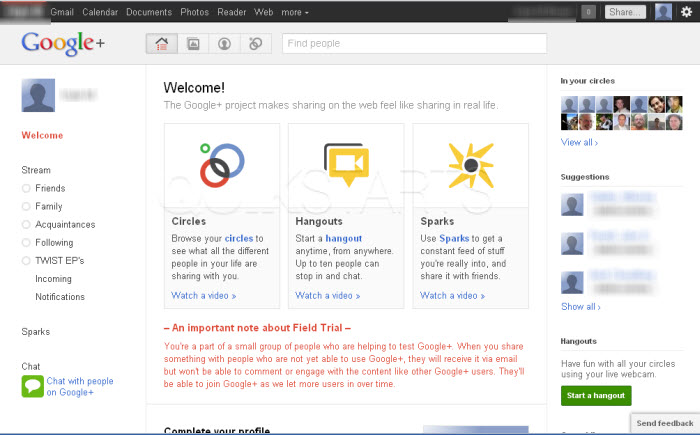
Type plus.google.com into the address bar of your browser.
2
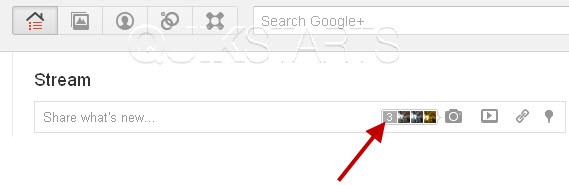
Thumbnails of your most recent photos should be displayed in the share box preceded by a box with a number. Click the box with the number.
Note :
Requires that you have at least one photo stored on Google Plus.
3
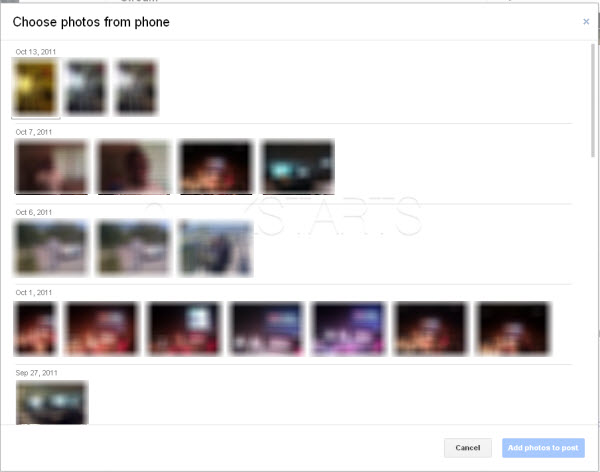
A box should open with all of your Google Plus photos.
4
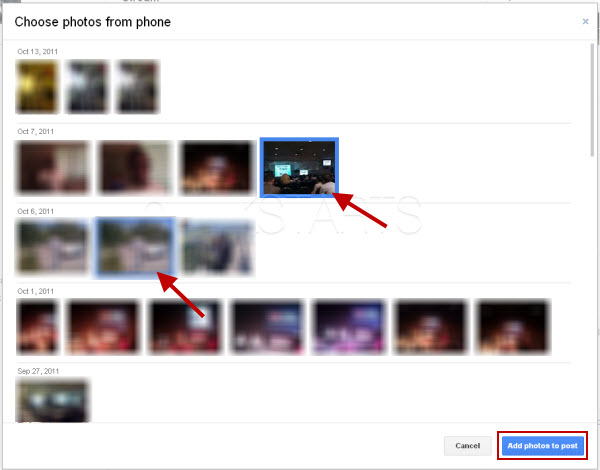
Click the image or images that you want to insert into the post, then click the "Add photos to post" button.
Note :
You can elect multiple photos.
5
Type in any text that you want to include and click the "Share" button.
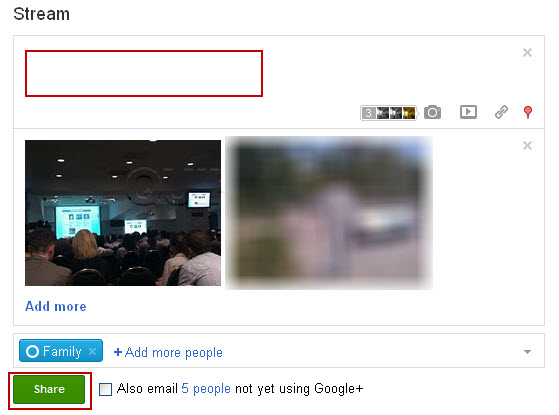
6
This task should now be complete. If not, review and repeat the steps as needed. Submit any questions using the section at the bottom of this page.
comments powered by Disqus
 Ask a question or provide an answer