





This guide is part of the Google TV series
1.
Clear search history on the Sony Google TV browser
2. How to add facebook to google tv
3. How to display channels on Sony Google TV
4. How to launch the Chrome web browser in Google tv
5. How to reboot a Google Sony TV
6. How to start the split screen on Google Sony TV
7. How to use sony google tv
8. How to view search history on the Sony Google TV
9. Recall a channel on the Sony Google TV remote
10. Search for a channel using the Sony Google TV
2. How to add facebook to google tv
3. How to display channels on Sony Google TV
4. How to launch the Chrome web browser in Google tv
5. How to reboot a Google Sony TV
6. How to start the split screen on Google Sony TV
7. How to use sony google tv
8. How to view search history on the Sony Google TV
9. Recall a channel on the Sony Google TV remote
10. Search for a channel using the Sony Google TV
Make: Sony
Model / Product: NSX-40GT1
Version: Android 2.1
Objective / Info: Learn to add a bookmark for Facebook to the list of bookmarks on Google TV.
Model / Product: NSX-40GT1
Version: Android 2.1
Objective / Info: Learn to add a bookmark for Facebook to the list of bookmarks on Google TV.
1
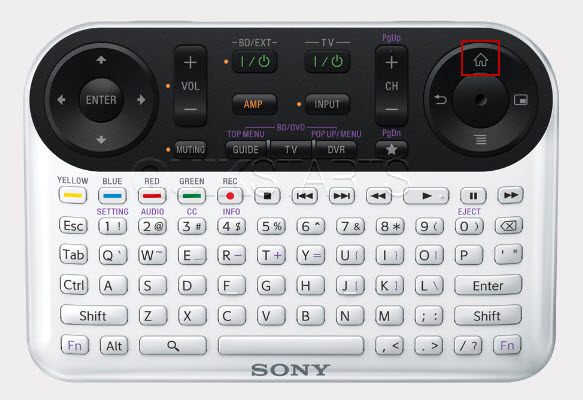
While viewing a channel on the television, press the home button on the Sony TV remote control.
2
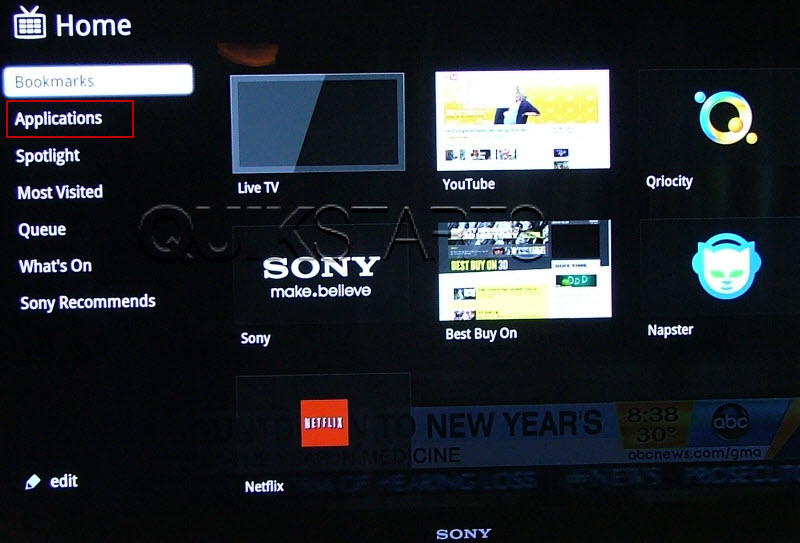
The "Home" menu should appear and a sound should be heard. The first option "Bookmarks", should be already selected and all of your current bookmarks should be displayed to the right. Click the "Applications" link on the left column.
Note :
Use the circular pad on the left of the remote to choose a selection and press the enter button to make the selection..
3
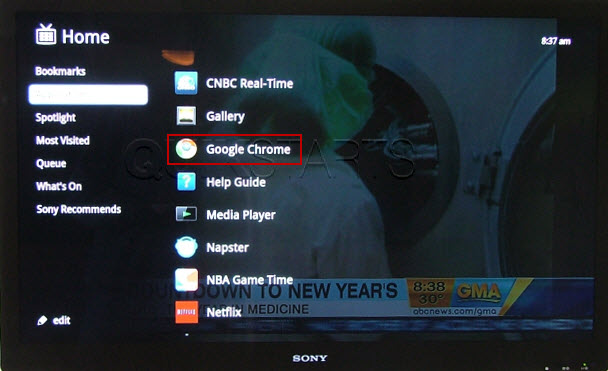
A second column of applications should appear on the right side of the original menu. Click the "Chrome" link.
Note :
Use the circular pad on the left of the remote to choose a selection and press the enter button to make the selection..
4
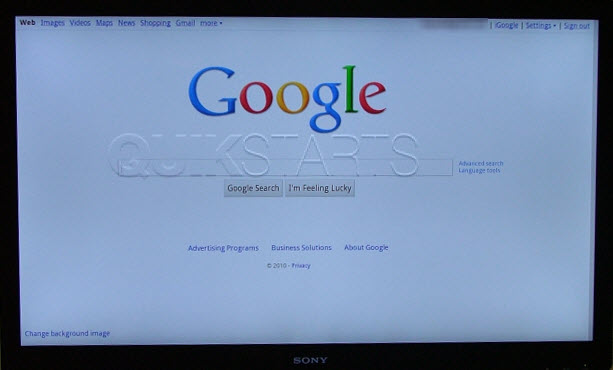
The browser should open up to the "Google.com" page.
5
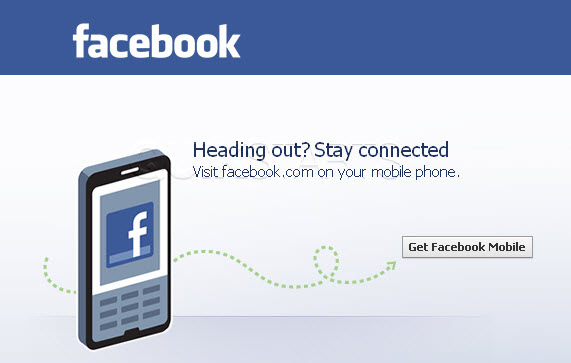
Do a search for Facebook.com
6
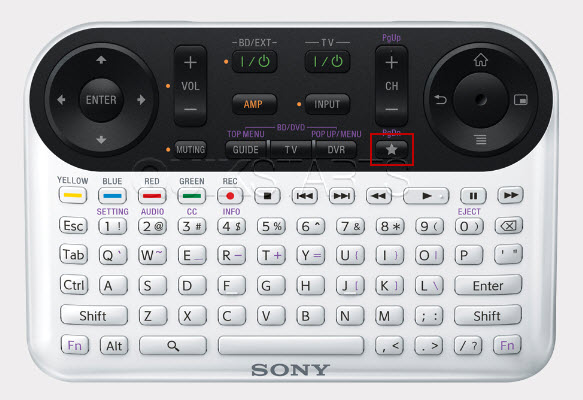
To create the bookmark, press the star button on your controller.
7
Select the "Save this Web Page" option. Note :Use the circular pad on the left of the remote to choose a selection and press the enter button to make the selection.
8
The facebook option should now appear as an option on the bookmarks page, seen in step 1. This task should now be complete. If not, review and repeat the steps as needed. Submit any questions using the section at the bottom of this page.
comments powered by Disqus
 Ask a question or provide an answer