





This guide is part of the BitLocker series
1.
Forgot your Bitlocker password for flash drive
2. How to unlock an encrypted flash drive on Windows 7
3. How to use Bitlocker
4. How to use BitLocker to encrypt a flash drive
5. How to use BitLocker to encrypt a hard drive
6. How to use BitLocker to unlock a hard drive
2. How to unlock an encrypted flash drive on Windows 7
3. How to use Bitlocker
4. How to use BitLocker to encrypt a flash drive
5. How to use BitLocker to encrypt a hard drive
6. How to use BitLocker to unlock a hard drive
Make: Microsoft
Model / Product: BitLocker
Version: Windows 7 Ultimate
Objective / Info: Unlock a flash drive that had been previously locked with BitLocker in Windows 7
Model / Product: BitLocker
Version: Windows 7 Ultimate
Objective / Info: Unlock a flash drive that had been previously locked with BitLocker in Windows 7
1
Plug the encrypted flash drive into the computer.2
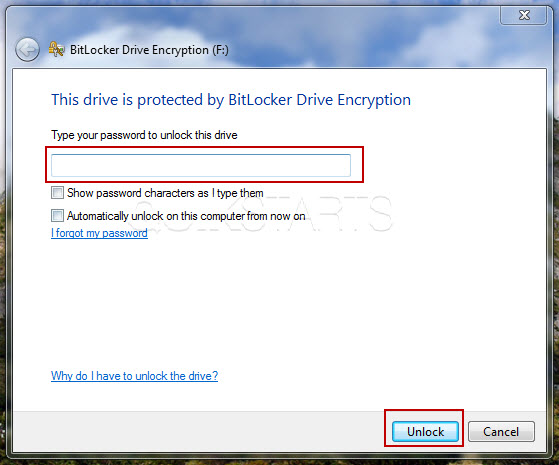
Type the password that was created when the flash drive was encrypted and click the "unlock" button.
3
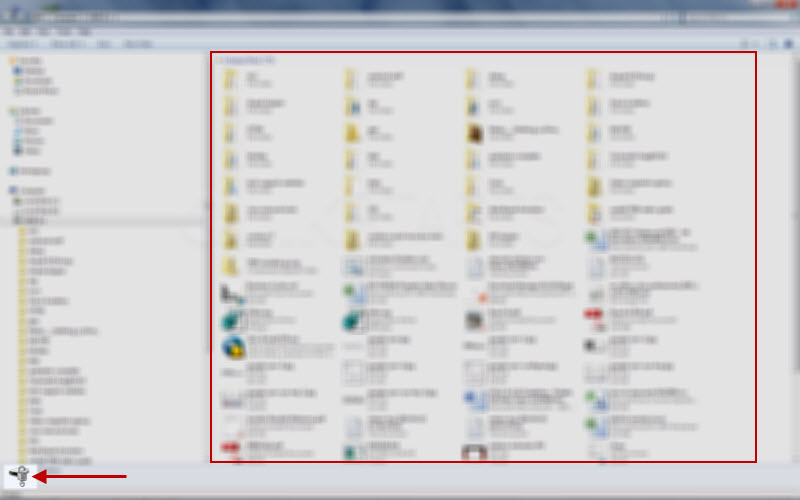
All of you files should become available to you for regular use while the drive remains encrypted.
Note :
The lock icon in the lower left hand corner shows the data is still encrypted.
4
This task should be complete. If you did not get these results, repeat the steps.
comments powered by Disqus
 Ask a question or provide an answer