






This guide is part of the Windows 7 series
1.
Create a password for your windows 7 user account
2. Find your ip address from the windows 7 desktop
3. How to add a user account in windows 7
4. How to change a folders photo in windows 7
5. How to change screen resolution in Windows 7
6. How to find windows movie maker in windows 7
7. How to find your ip address in windows 7
8. How to find your Mac address on windows 7
9. How to recover data with windows 7 system restore
10. How to search for Excel files in Windows 7
2. Find your ip address from the windows 7 desktop
3. How to add a user account in windows 7
4. How to change a folders photo in windows 7
5. How to change screen resolution in Windows 7
6. How to find windows movie maker in windows 7
7. How to find your ip address in windows 7
8. How to find your Mac address on windows 7
9. How to recover data with windows 7 system restore
10. How to search for Excel files in Windows 7
Make: Microsoft
Model / Product: Windows
Version: 7
Objective / Info: Learn how to recovery lost system data using the system restore feature. This feature will only work if it has been activated before the system data is lost. See activating guide goo.gl
Model / Product: Windows
Version: 7
Objective / Info: Learn how to recovery lost system data using the system restore feature. This feature will only work if it has been activated before the system data is lost. See activating guide goo.gl
1
Goto the Start menu and left click.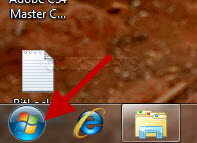
2
Right click on the "Computer" link.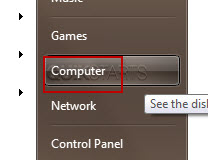
3
Left click on "properties."
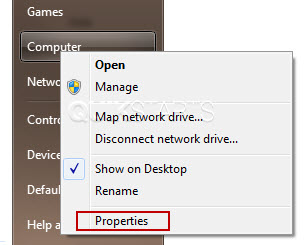
4
Left click on the "System Protection" link.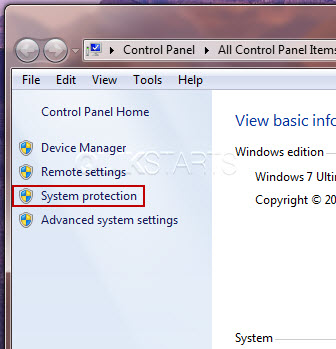
5
Click the "System Restore" button.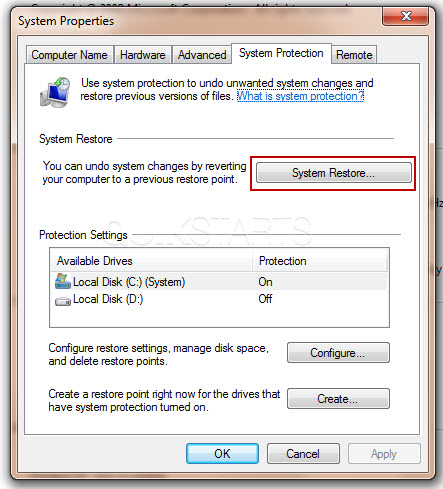
6
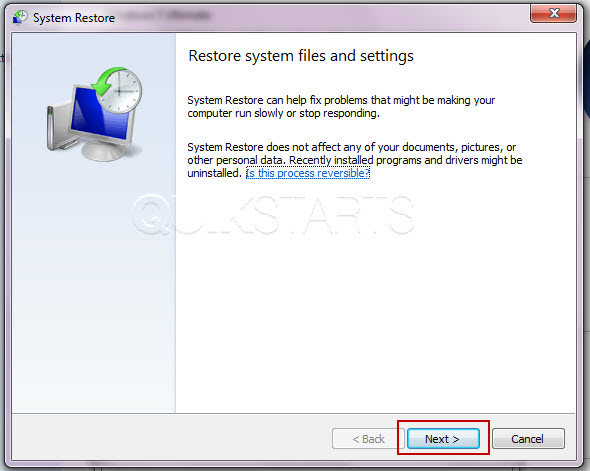
Click the "Next" button.
7
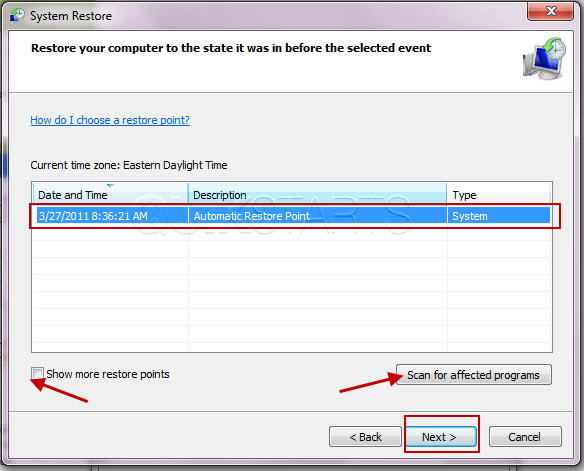
Click the "Next" button to continue. Note: If you want to see which programs could be affected by this restore, click the "Scan for affected programs" button.
Note :
To show more restore points check the "show more restore points" box on the left.
8
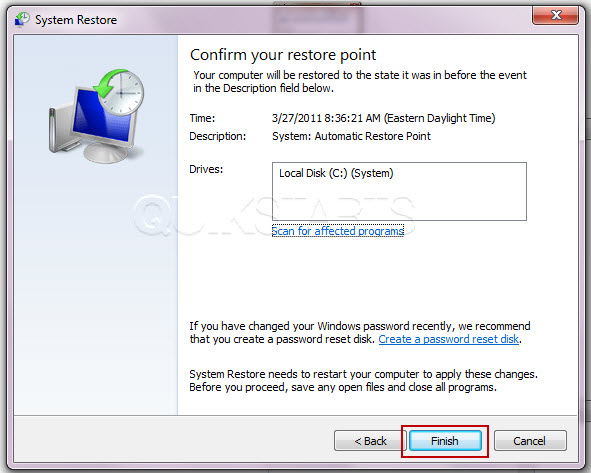
Once again think through your choice and be sure it is what you want to do. By rolling back your computer to a previous date, some settings or system data that was created after that date will be returned to the state in was in on the date you selected in the previous step. Click the "Next" button.
9
Windows should begin the restoration process which includes recovering system data. Note :Your computer may reboot.
10
This task should now be complete. If not, review and repeat the steps as needed. Submit any questions using the section at the bottom of this page.
comments powered by Disqus
 Ask a question or provide an answer