





This guide is part of the G1 phone series
1.
How to change the screen orientation on a G1
2. How to download music to g1 phone
3. How to install google mobile apps by text message
4. How to Install the Comcast Xfinity Android App
5. How to open android market on a g1
6. How to send email from a g1
7. How to sync a g1 with a pc
8. How to take pictures on g1 a phone
9. How to use a g1 phone
10. How to use Google Calendar Sync with the g1
2. How to download music to g1 phone
3. How to install google mobile apps by text message
4. How to Install the Comcast Xfinity Android App
5. How to open android market on a g1
6. How to send email from a g1
7. How to sync a g1 with a pc
8. How to take pictures on g1 a phone
9. How to use a g1 phone
10. How to use Google Calendar Sync with the g1
Make: Google
Model / Product: Calendar Sync
Version: 0.9.3.5
Objective / Info: Synchronize the G1 with Microsoft Outlook.
Model / Product: Calendar Sync
Version: 0.9.3.5
Objective / Info: Synchronize the G1 with Microsoft Outlook.
1
Download and install Google Calendar Sync on your computer. Note :Available at Google for download
2
Once it is installed, run the program.3
Configure the program by providing your Gmail email address and password. Select the type of sync you want, the number of minutes you want sync to take place and click save.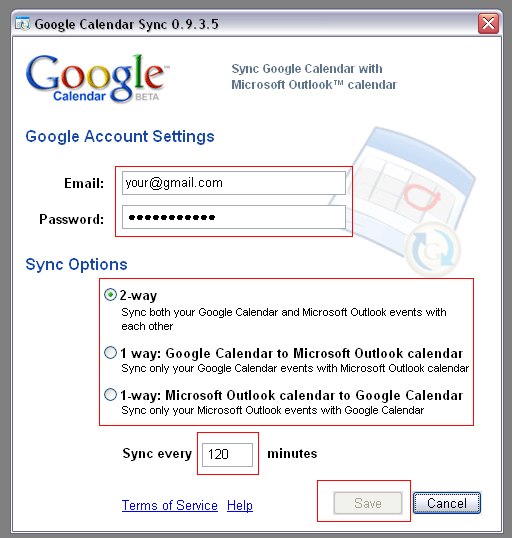
4
Your Google Calendar and Outlook calendars should sync.5
To manually sync calendars on demand, right click on the Google Calendar Sync icon and select “Sync”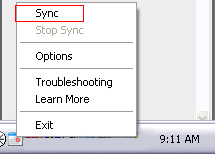
6
The icon should change to reflect that sync is underway.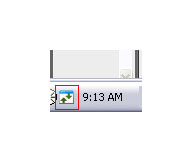
7
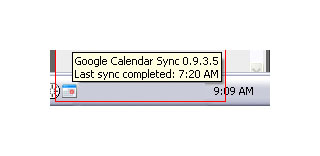
To find out when the last sync took place, roll the mouse over the icon in the system tray.

comments powered by Disqus
 Ask a question or provide an answer