






This guide is part of the Microsoft Excel 2007 series
1.
Delete a column in Excel 2007
2. How to add a background image to excel 2007
3. How to add a column to a spreadsheet in excel 2007
4. How to add a drop down list in excel 2007
5. How to add a URL to Excel 2007
6. How to auto fit column width in excel 2007
7. How to convert a column into a row in Excel 2007
8. How to create a drop down menu in Excel 2007
9. How to create a pie chart in Excel 2007
10. How to create a popup window in Excel 2007
2. How to add a background image to excel 2007
3. How to add a column to a spreadsheet in excel 2007
4. How to add a drop down list in excel 2007
5. How to add a URL to Excel 2007
6. How to auto fit column width in excel 2007
7. How to convert a column into a row in Excel 2007
8. How to create a drop down menu in Excel 2007
9. How to create a pie chart in Excel 2007
10. How to create a popup window in Excel 2007
Make: Microsoft
Model / Product: Excel
Version: 2007
Objective / Info: Add content to cells in an Excel spreadsheet and auto fit the columns width to fit the content.
Model / Product: Excel
Version: 2007
Objective / Info: Add content to cells in an Excel spreadsheet and auto fit the columns width to fit the content.
1
Open Excel by clicking the icon on desktop or start menu.
2
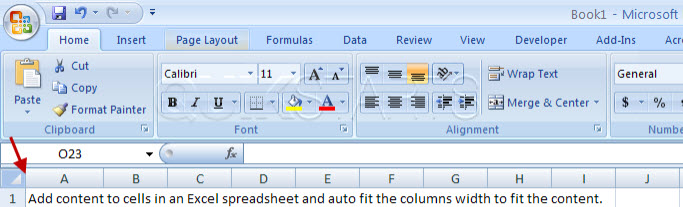
Row 1 has been populated with a long sentence. Notice that the sentence overlaps columns B through I. Once we use the auto fit column width feature, the column will automatically adjust to display all of the contents in a single column.
3
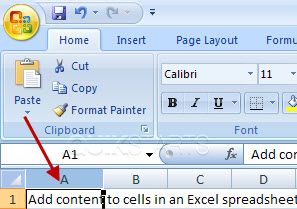
Select column A by left clicking on it.
4
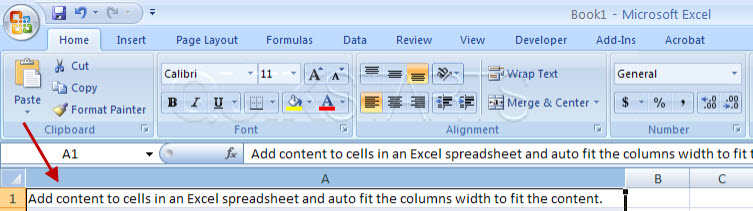
The column should have adjusted itself to fet perfectly around any content in the column.
Note :
If there had been multiple rows of content, the column would have adjusted to the width of the widest cell.
5
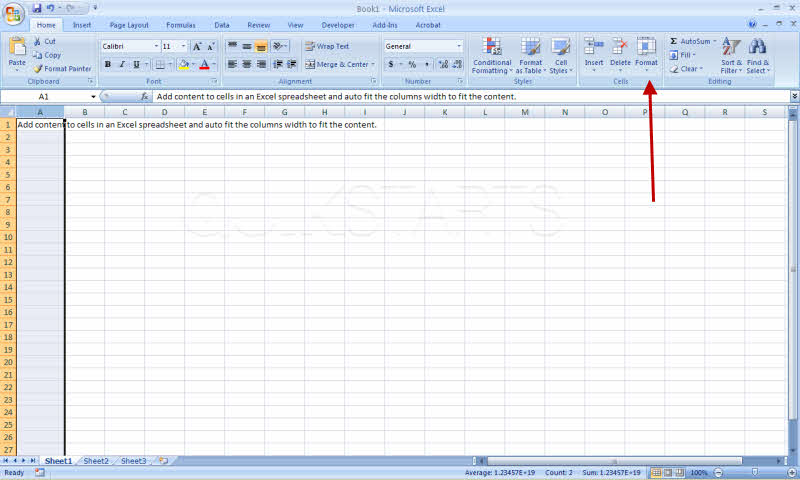
While column A is selected, move your mouse to the right hand side of the screen and left click the "Format" button.
6
Select the "AutoFit Column Width" option from the drop down menu.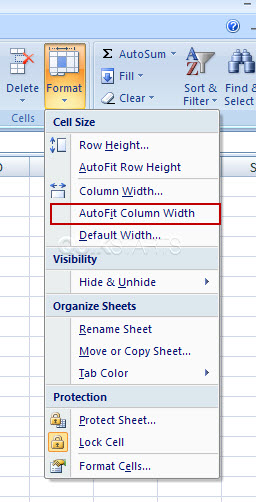
7
This task should be complete. Review the steps if you had any issues and try again.Submit questions or request for more guides in the questions section below.
comments powered by Disqus
 Ask a question or provide an answer