





This guide is part of the Screen capture series
1.
How to take a pageshot on a MacBook Air
2. How to take a screenshot
3. How to take a screenshot in Windows 7
4. How to take a screenshot in windows xp
5. How to take a screenshot in Word 2010
6. How to take a screenshot on a MacBook Air
7. How to take a screenshot on an iPad
2. How to take a screenshot
3. How to take a screenshot in Windows 7
4. How to take a screenshot in windows xp
5. How to take a screenshot in Word 2010
6. How to take a screenshot on a MacBook Air
7. How to take a screenshot on an iPad
Make: Microsoft
Model / Product: Windows
Version: XP
Objective / Info: Take a screen shot in windows xp.
Model / Product: Windows
Version: XP
Objective / Info: Take a screen shot in windows xp.
1
Make sure the image that you want to capture is currently showing on your desktop. If its a web site, then goto that website. If its an application, open that application.
2
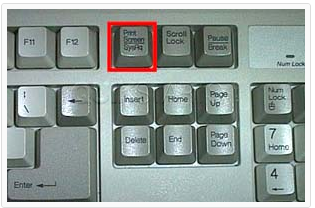
In the upper right hand part of the keyboard, press the "Prnt Scrn" key.This should apply to standard keyboards.
Note :
If you only want to take a screenshot of the window that is in focus, press the Alt key + the Print Screen key. In this example, only the window with Google would have been captured.
3
You have now taken a screenshot and placed it on the windows clipboard.4
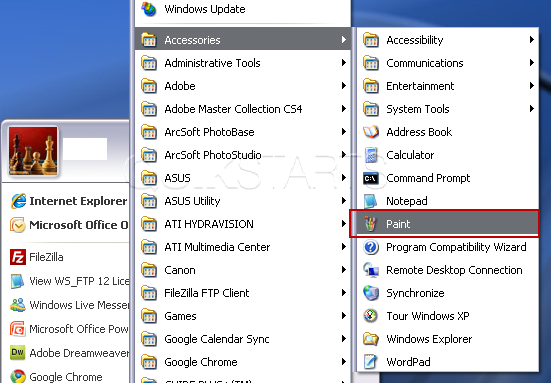
To view the screenshot, you can open a number of programs and paste it there. In this example, we will use Paint since it comes with Windows XP.5
Go to the start menu and click the start button, select "all programs", select "Accessories" and click "Paint"
6
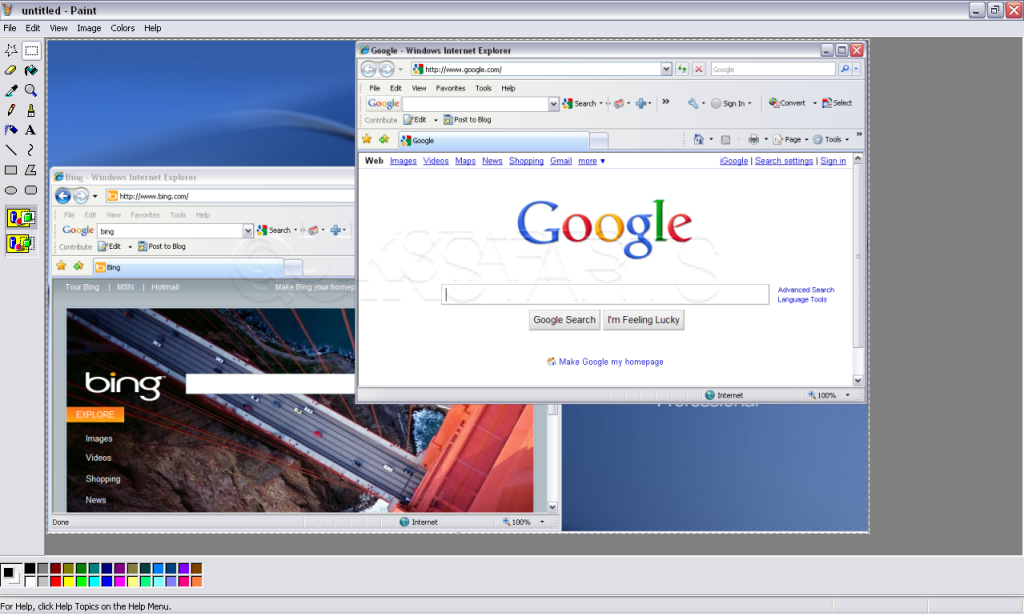
While in Paint, go to and click the "edit" option and then click "paste"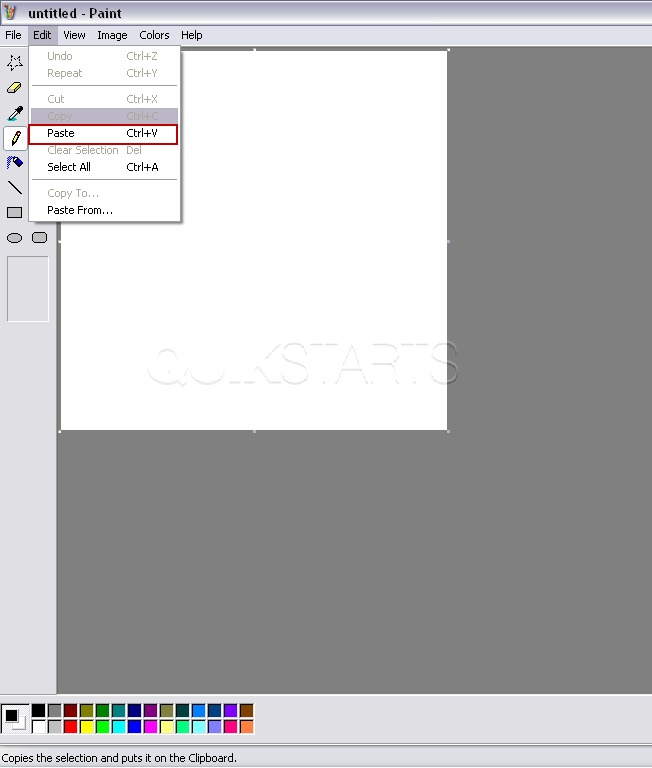
7
You can now save the image or use Paint to edit it.
8
To save it, click the "File" button from the menu bar select "save".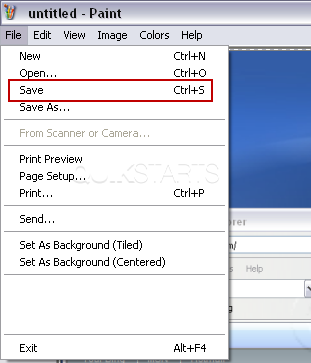
9
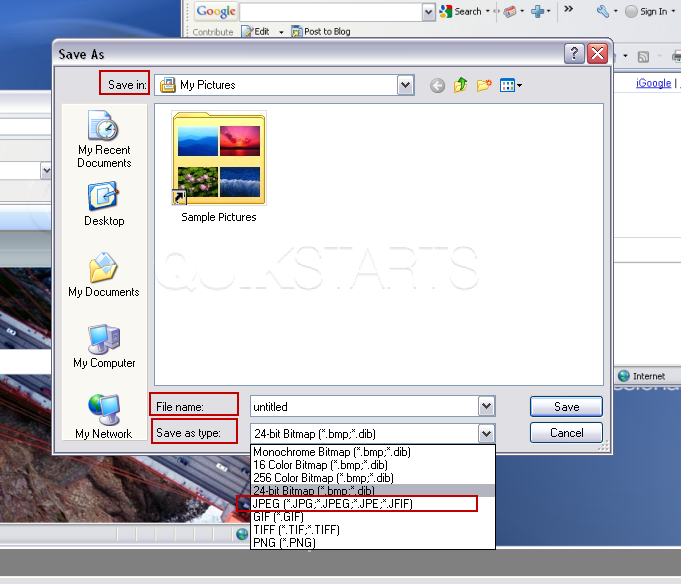
Choose the location on your computer where you want to save the image from the "Save in" drop down list, name the file and select the "file type" from the drop down list and click the "Save" button.
Note :
The file type of .jpg is recommended.

comments powered by Disqus
 Ask a question or provide an answer