






This guide is part of the Windows 7 series
1.
Create a password for your windows 7 user account
2. Find your ip address from the windows 7 desktop
3. How to add a user account in windows 7
4. How to change a folders photo in windows 7
5. How to change screen resolution in Windows 7
6. How to find windows movie maker in windows 7
7. How to find your ip address in windows 7
8. How to find your Mac address on windows 7
9. How to recover data with windows 7 system restore
10. How to search for Excel files in Windows 7
2. Find your ip address from the windows 7 desktop
3. How to add a user account in windows 7
4. How to change a folders photo in windows 7
5. How to change screen resolution in Windows 7
6. How to find windows movie maker in windows 7
7. How to find your ip address in windows 7
8. How to find your Mac address on windows 7
9. How to recover data with windows 7 system restore
10. How to search for Excel files in Windows 7
Make: Microsoft
Model / Product: Windows
Version: 7
Objective / Info: Learn how to change a folders photo in windows 7. The image did not appear immediately after following these steps. Some computers may require a reboot or initiation of the disk clean up feature.
Model / Product: Windows
Version: 7
Objective / Info: Learn how to change a folders photo in windows 7. The image did not appear immediately after following these steps. Some computers may require a reboot or initiation of the disk clean up feature.
1
From the desktop click the start menu button.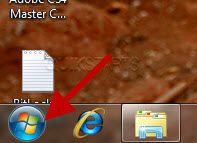
2
Browse to the drive that contains the folder and right click on the folder.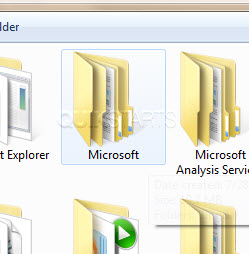
3
Left click the "Properties" option.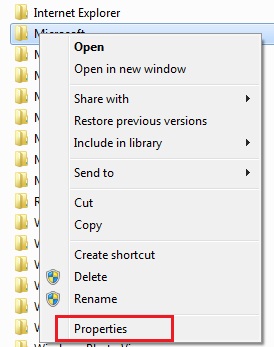
4
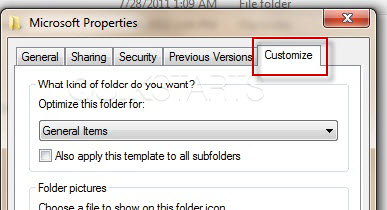
Click the "Customize" tab in the pop up box.
5
Click the "Choose File" button.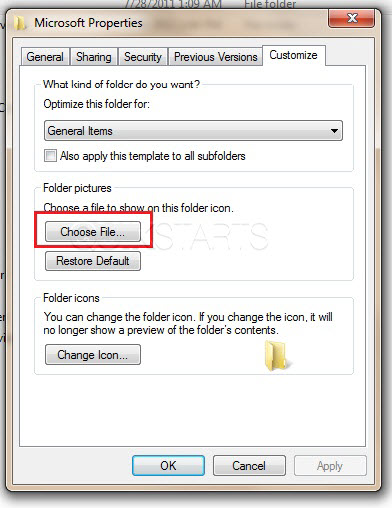
6
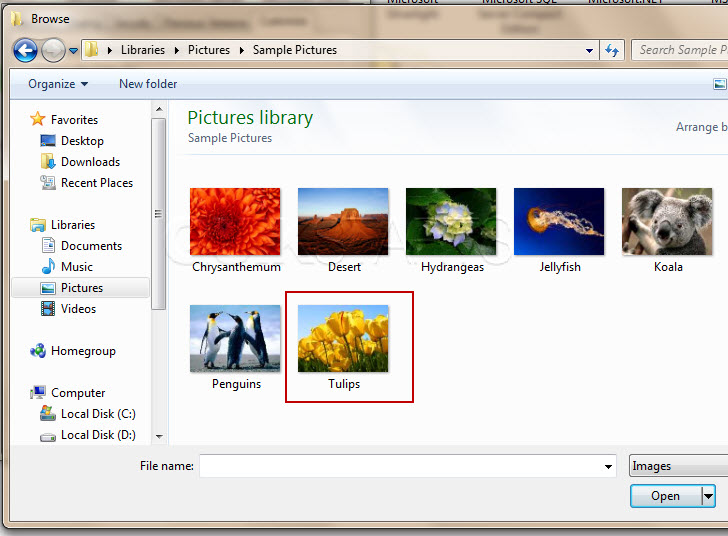
Browse to the image that you would like to use and double left click it.
7
Click the "Ok" button.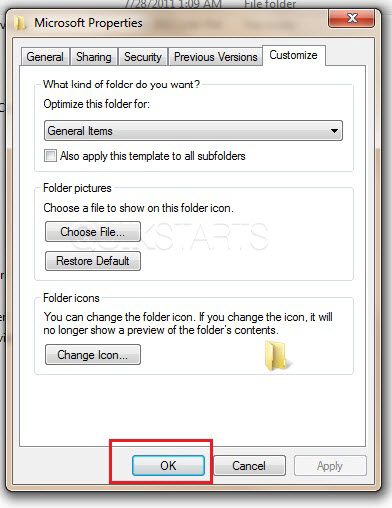
8
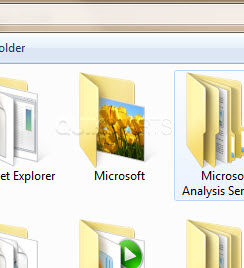
The folder should update to contain the photo. Note :
Reboot or running the Windows Disk Cleanup feature may be required if the image doesn't appear.
9
This task should now be complete. If not, review and repeat the steps as needed. Submit any questions using the section at the bottom of this page.
comments powered by Disqus
 Ask a question or provide an answer