





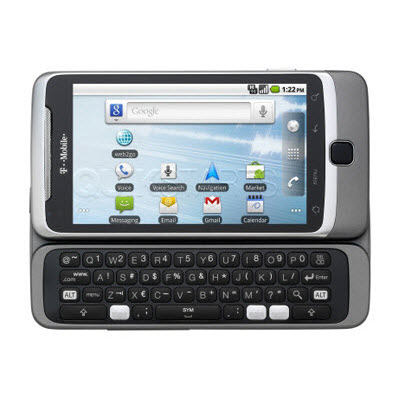
This guide is part of the G2 Phone series
1.
Change the SSID of your tethered G2 phone
2. How to activate the Facebook app on a G2 phone
3. How to check in on a g2 with Facebook
4. How to check your g2 operating system version
5. How to clear email search history on a g2
6. How to clear search history on a g2
7. How to create app shortcuts on a G2 phone
8. How to find your Mac address on your G2
9. How to perform a search for gmail on a g2
10. How to remove facebook app from the G2 desktop
2. How to activate the Facebook app on a G2 phone
3. How to check in on a g2 with Facebook
4. How to check your g2 operating system version
5. How to clear email search history on a g2
6. How to clear search history on a g2
7. How to create app shortcuts on a G2 phone
8. How to find your Mac address on your G2
9. How to perform a search for gmail on a g2
10. How to remove facebook app from the G2 desktop
Make: Google
Model / Product: T-Mobile G2
Version: Android 2.2
Objective / Info: Learn to secure your tethered hot spot on your G2 phone. See quikstarts.com for tethering setup.
Model / Product: T-Mobile G2
Version: Android 2.2
Objective / Info: Learn to secure your tethered hot spot on your G2 phone. See quikstarts.com for tethering setup.
1
Tap the Launcher icon on your G2 desktop.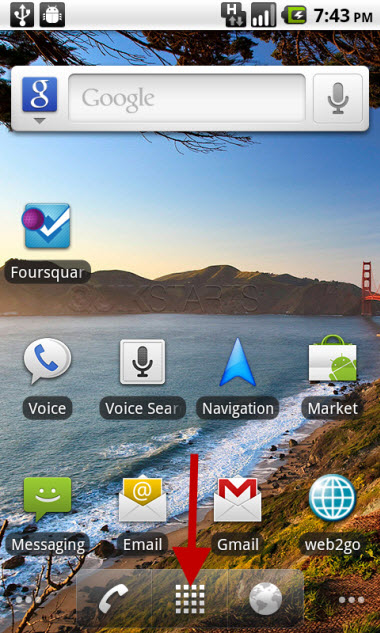
2
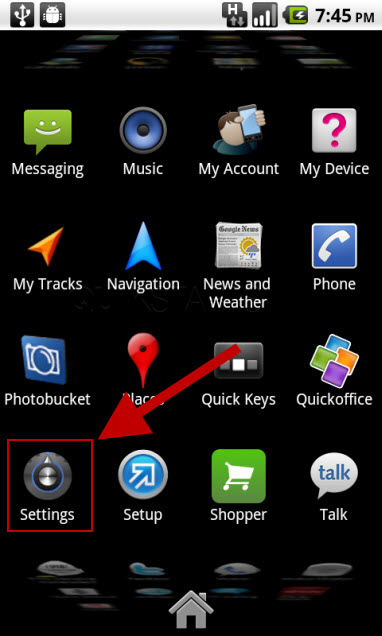
Tap the "Settings" icon. Note :
You may need to scroll down the screen to locate it.
3
Tap the "Wireless & networks" option.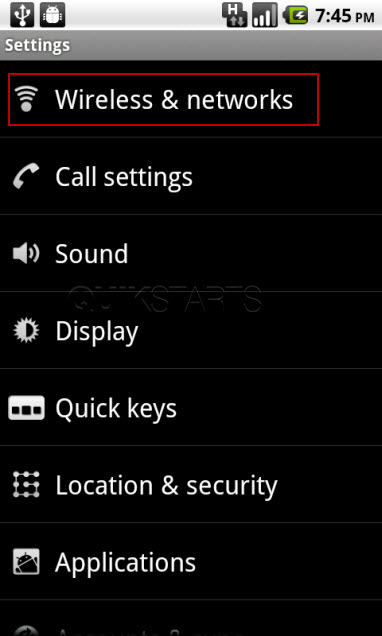
4
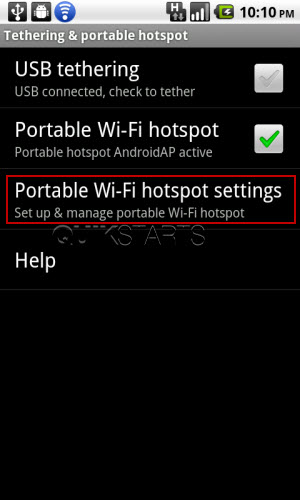
Tap the "Portable Wi-Fi hotspot settings" option. Note :
The "Portable Wi-Fi hotspot" option should have a check mark in it already and the WiFi service should be active.
5
Tap the "Configure Wi-Fi hotspot" option.
6
Tap the "Security" option.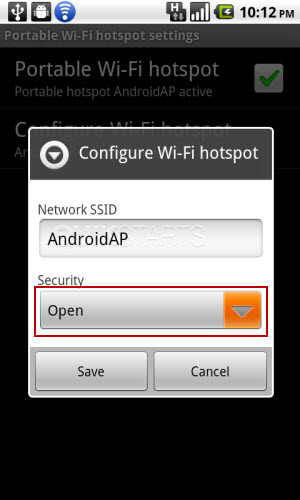
7
Tap the "WPA2 PSK" option.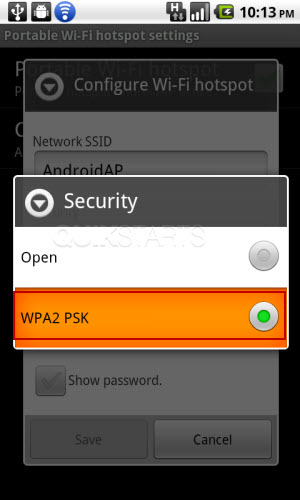
8
Tap and complete the "password" field and tap the "Save" button.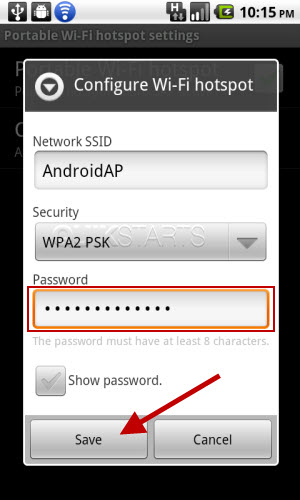
9
You should be returned to the settings screen where the WPA2 PSK should be indicated as active.
10
This task should now be complete. If not, review and repeat the steps as needed. Submit any questions using the section at the bottom of this page.
comments powered by Disqus
 Ask a question or provide an answer