





This guide is part of the Gmail series
1.
Activate Gmail desktop notifications for Chrome
2. Drag and drop gmail attachments to your desktop
3. How to activate the priority inbox in gmail
4. How to add a link to an email using gmail
5. How to add an attachment in gmail
6. How to archive GMail
7. How to change your gmail theme
8. How to create folders in gmail
9. How to forward an email in GMail
10. How to print an email in GMail
2. Drag and drop gmail attachments to your desktop
3. How to activate the priority inbox in gmail
4. How to add a link to an email using gmail
5. How to add an attachment in gmail
6. How to archive GMail
7. How to change your gmail theme
8. How to create folders in gmail
9. How to forward an email in GMail
10. How to print an email in GMail
Make: Google
Model / Product: Gmail
Version: n/a
Objective / Info: Drag an email attachment directly from gmail to your desktop using the Google Chrome browser.
Model / Product: Gmail
Version: n/a
Objective / Info: Drag an email attachment directly from gmail to your desktop using the Google Chrome browser.
1
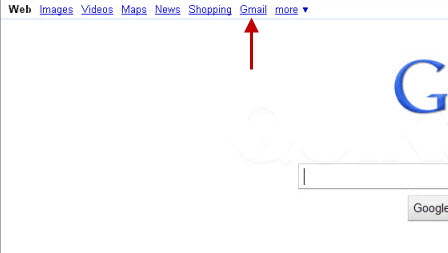
Open your browser and visit Gmail by going to google.com and clicking the "Gmail" link at the top of the page.
2
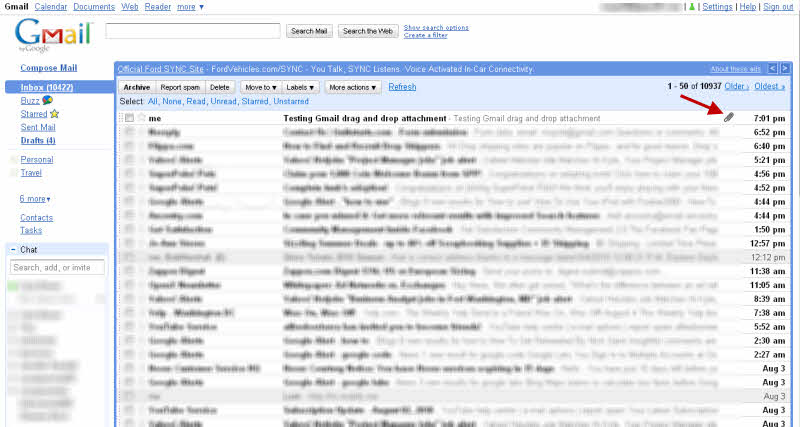
Locate an email that has an attachment. The paper click icon to the right indicates an attachment.
3
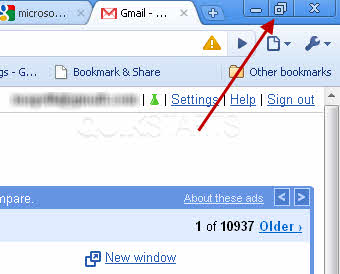
If your browser is covering the entire screen, reduce its size so that you can see the desktop by clicking the double window icon in the upper right hand corner.
4
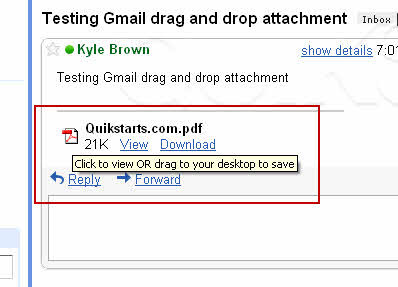
Roll your mouse over the attachment. You should see a notice advising you that you can drag and drop.
5
Click and drag the attachment from the gmail email onto the desktop of your computer.
Note :
Left click and hold, then drag the mouse over to your desktop, when you are there, release the left click button

6
This task should be complete. If not, read and review the steps above.
comments powered by Disqus
 Ask a question or provide an answer