






This guide is part of the Microsoft Excel 2010 series
1.
Add a print button to the tool bar in excel 2010
2. Create a bar graph in Excel 2010
3. How to add a background image to excel 2010
4. How to add a column to a spreadsheet in excel 2010
5. How to add a URL to Excel 2010
6. How to adjust the print layout in Excel 2010
7. How to auto fit column width in excel 2010
8. How to convert a column into a row in Excel 2010
9. How to convert excel 2010 to PDF
10. How to create a dashboard in Excel 2010
2. Create a bar graph in Excel 2010
3. How to add a background image to excel 2010
4. How to add a column to a spreadsheet in excel 2010
5. How to add a URL to Excel 2010
6. How to adjust the print layout in Excel 2010
7. How to auto fit column width in excel 2010
8. How to convert a column into a row in Excel 2010
9. How to convert excel 2010 to PDF
10. How to create a dashboard in Excel 2010
Make: Microsoft
Model / Product: Excel
Version: 2010
Objective / Info: Use the AutoSum feature to calculate the sum of the values of multiple cells in a column.
Model / Product: Excel
Version: 2010
Objective / Info: Use the AutoSum feature to calculate the sum of the values of multiple cells in a column.
1
Open Excel by double left clicking the icon on the desktop or start menu or open the document that you want to work on.
2
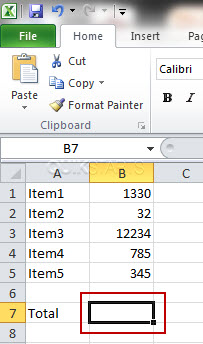
Click to highlight the cell that will contain the sum. Note :
In this example we create a cell and placed the word total in it and will use AutoSum next to it.
3
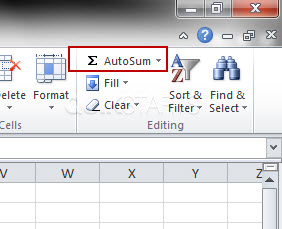
Click the "AutoSum" button in the upper right hand corner
4
The cells directly above the cell you elected to contain the sum should all show as selected with a flashing border around them.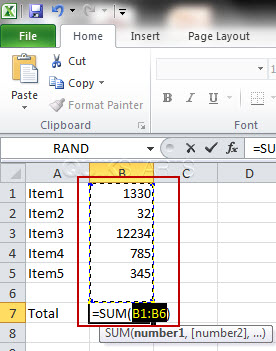
5
Press the "Enter" key on the keyboard and the sum of all of the selected cells should be reflected in the cell.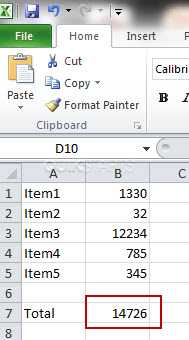
6
This task should now be complete. If not, review and repeat the steps as needed. Submit any questions using the section at the bottom of this page.
comments powered by Disqus
 Ask a question or provide an answer