






This guide is part of the Microsoft Excel 2010 series
1.
Add a print button to the tool bar in excel 2010
2. Create a bar graph in Excel 2010
3. How to add a background image to excel 2010
4. How to add a column to a spreadsheet in excel 2010
5. How to add a URL to Excel 2010
6. How to adjust the print layout in Excel 2010
7. How to auto fit column width in excel 2010
8. How to convert a column into a row in Excel 2010
9. How to convert excel 2010 to PDF
10. How to create a dashboard in Excel 2010
2. Create a bar graph in Excel 2010
3. How to add a background image to excel 2010
4. How to add a column to a spreadsheet in excel 2010
5. How to add a URL to Excel 2010
6. How to adjust the print layout in Excel 2010
7. How to auto fit column width in excel 2010
8. How to convert a column into a row in Excel 2010
9. How to convert excel 2010 to PDF
10. How to create a dashboard in Excel 2010
Make: Microsoft
Model / Product: Excel
Version: 2010
Objective / Info: Create a pop up window with a custom message when a workbook is opened in Excel 2010.
Model / Product: Excel
Version: 2010
Objective / Info: Create a pop up window with a custom message when a workbook is opened in Excel 2010.
1
Start Excel by clicking the icon on the desktop or start menu.
2
Open a new or existing worksheet.3
Click the "Developer" tab on the menu.

4
Click the "Visual Basic" button.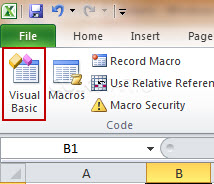
5
We will select the entire workbook for this example. This means the message should be shown whenever the workbook is opened.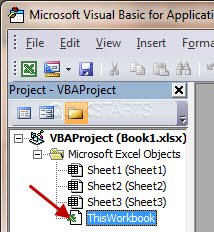
6
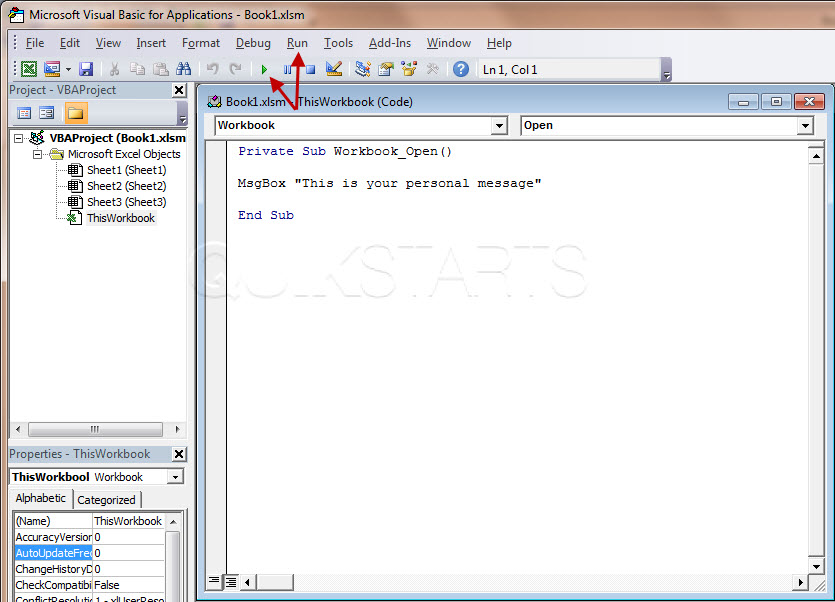
To test the pop-up. Click either the green triangle OR click the "Run" button on the menu, then click "Run Sub/UserForm"
7
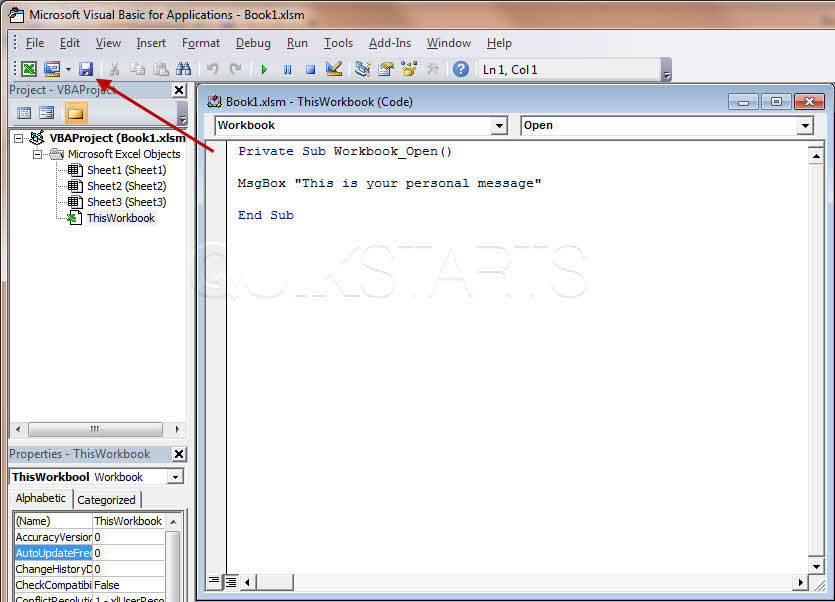
In the Visual Basic Editor, paste the following code into the box to the right: Private Sub Workbook_Open() MsgBox "This is your personal message" End Sub Note :Replace this portion "This is your personal message" with your own message.
8
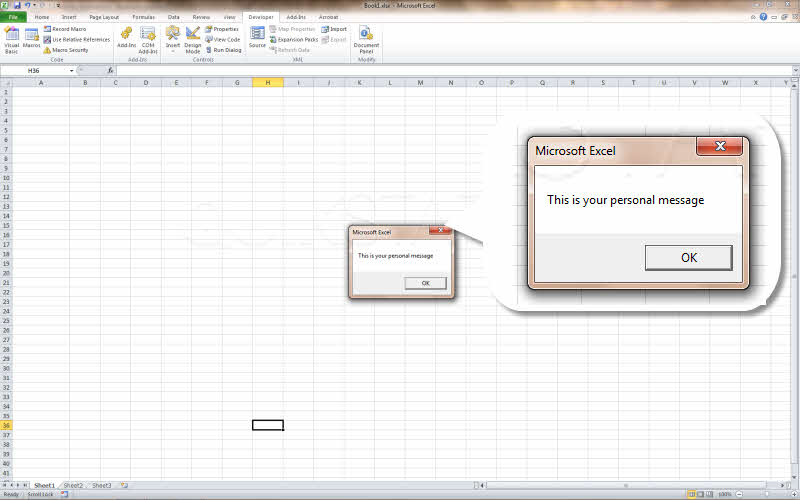
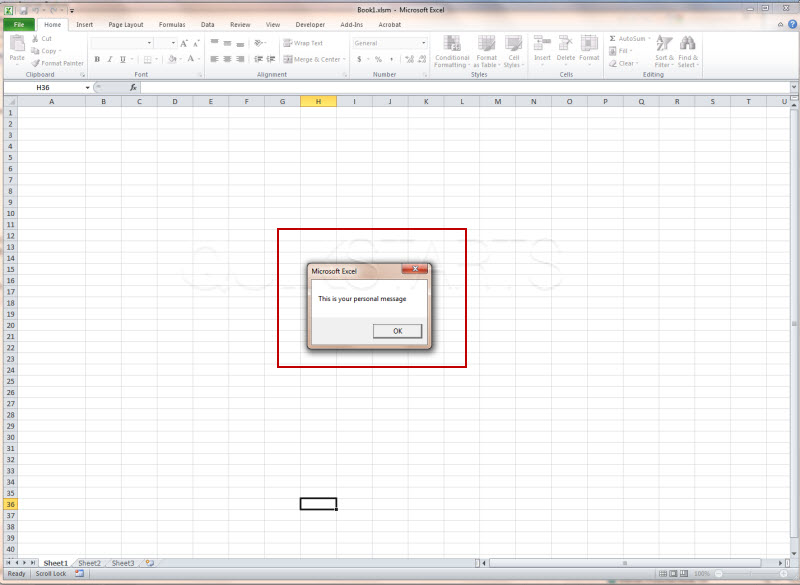
You should now see what your pop-up box will look like.
9
You should be returned to the visual basic editor screen. Click the save button.
10
This is important. Click the "No" button.

11
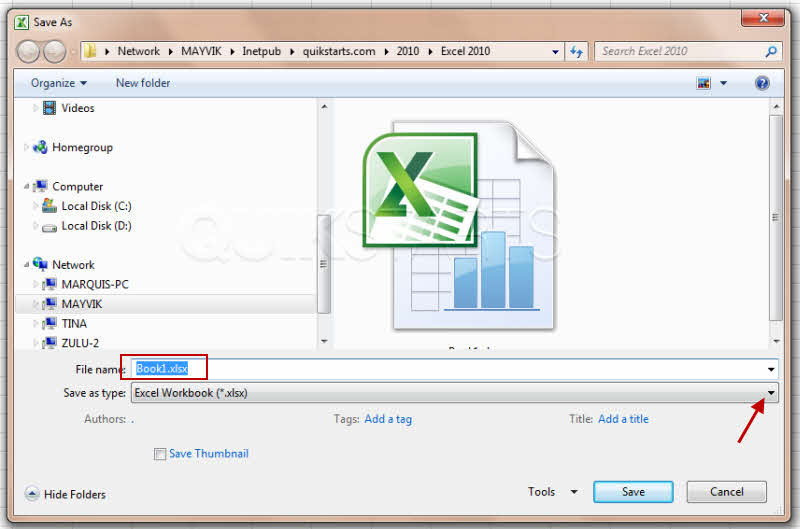
Type the name you want to give your file in the "File Name" box. Then click the drop down box labeled "Save as Type"
12
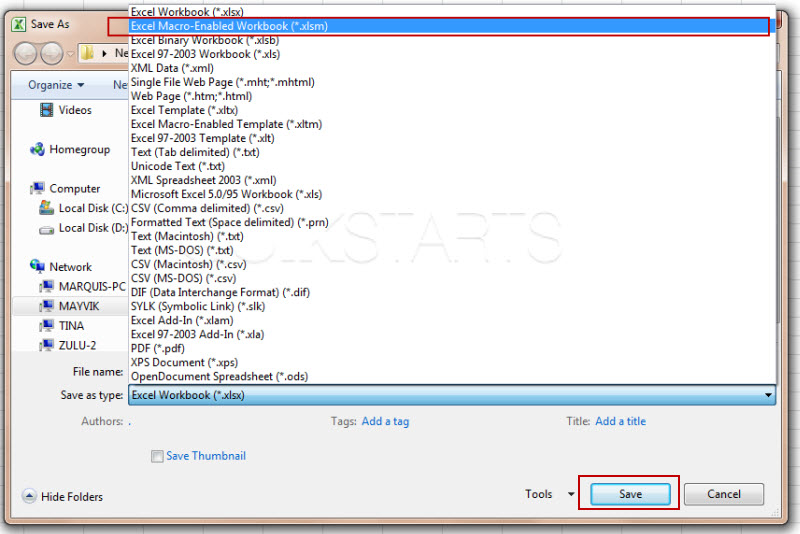
Make sure you select the Save as Type of "Excel Macro-Enabled workbook (*.xlsm)" and click the "Save" button.
13
You can now continue to edit the workbook or close all of the open excel boxes. When this workbook is reopened going forward, you should see the pop up.
Note :
You may receive a warning message asking you to enable marcos. Accept it to see the popup.

comments powered by Disqus
 Ask a question or provide an answer