






This guide is part of the Google Docs series
1.
Auto fit column width in Google docs spreadsheets
2. Change a date in a Google doc spreadsheet cell
3. Change the hyperlink color in a docs document
4. Change the slide speed in Google Docs presentation
5. Convert Google docs spreadsheet into a PDF file
6. Convert Google docs spreadsheet into an Excel file
7. Freeze top row when scrolling in Google Docs
8. How to add a bookmark in Google Docs
9. How to add a cell border in Google Sheets
10. How to add a column to a google docs spreadsheet
2. Change a date in a Google doc spreadsheet cell
3. Change the hyperlink color in a docs document
4. Change the slide speed in Google Docs presentation
5. Convert Google docs spreadsheet into a PDF file
6. Convert Google docs spreadsheet into an Excel file
7. Freeze top row when scrolling in Google Docs
8. How to add a bookmark in Google Docs
9. How to add a cell border in Google Sheets
10. How to add a column to a google docs spreadsheet
Make: Google
Model / Product: Sheets
Version: 2026
Objective / Info: Learn how to hide and unhide the menus in Google Sheets.
Model / Product: Sheets
Version: 2026
Objective / Info: Learn how to hide and unhide the menus in Google Sheets.
1
Launch Google Sheets by clicking on the "Google apps" icon next to your avatar and click on the Google Sheets icon.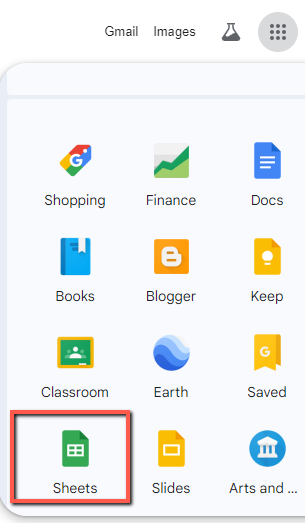
2
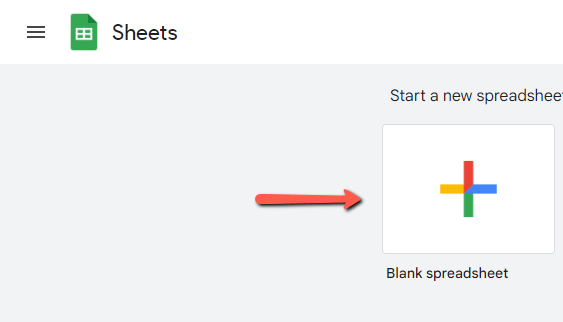
Create a new document by clicking on "Blank spreadsheet".
Note :
Alternatively, you can select an already existing spreadsheet.
3
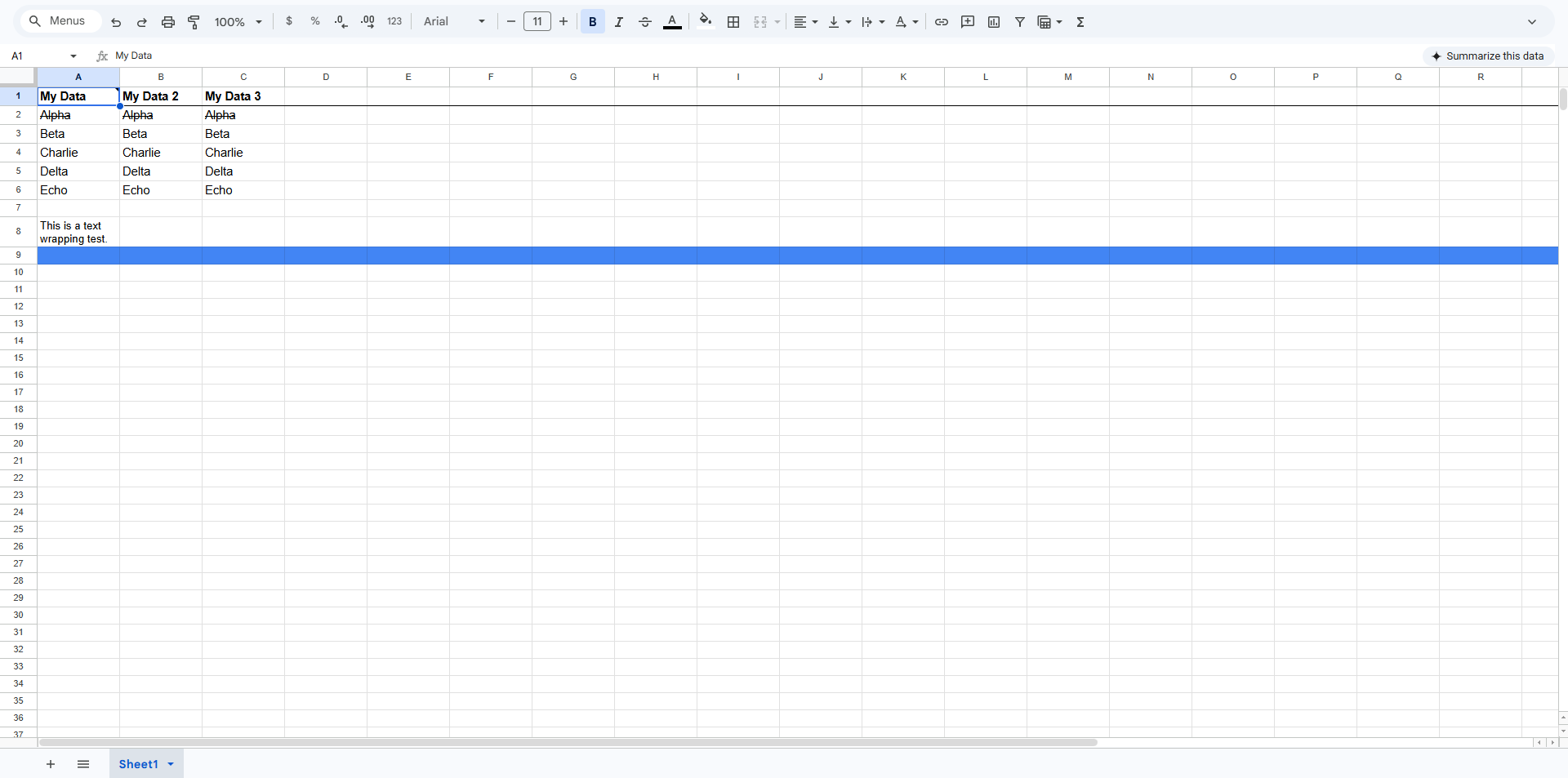
Click the "hide the menus" arrow on the top right.

4
The menu should now be hidden. Click on the arrow again to unhide it.
5
This task should be complete. Review the steps if you had any issues and try again. Submit questions or request for more guides in the questions section below.
comments powered by Disqus
 Ask a question or provide an answer