






This guide is part of the Google Docs series
1.
Auto fit column width in Google docs spreadsheets
2. Change a date in a Google doc spreadsheet cell
3. Change the hyperlink color in a docs document
4. Change the slide speed in Google Docs presentation
5. Convert Google docs spreadsheet into a PDF file
6. Convert Google docs spreadsheet into an Excel file
7. Freeze top row when scrolling in Google Docs
8. How to add a bookmark in Google Docs
9. How to add a cell border in Google Sheets
10. How to add a column to a google docs spreadsheet
2. Change a date in a Google doc spreadsheet cell
3. Change the hyperlink color in a docs document
4. Change the slide speed in Google Docs presentation
5. Convert Google docs spreadsheet into a PDF file
6. Convert Google docs spreadsheet into an Excel file
7. Freeze top row when scrolling in Google Docs
8. How to add a bookmark in Google Docs
9. How to add a cell border in Google Sheets
10. How to add a column to a google docs spreadsheet
Make: Google
Model / Product: Docs
Version: Spreadsheet
Objective / Info: Use the Sum function to calculate the sum of the values of multiple cells in a column.
Model / Product: Docs
Version: Spreadsheet
Objective / Info: Use the Sum function to calculate the sum of the values of multiple cells in a column.
1
Launch Google Docs by visiting google.com, click the "more" menu option and select "Documents"

2
Click the spreadsheet that contains a column that you want to change.

3
Click to highlight the cell that will contain the sum. Note :
In this example we create a cell and placed the word total in it and will populate the Sum next to it.
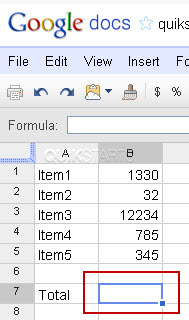
4
Click the "Function" button in the upper right hand corner.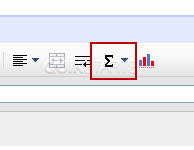
5
Click "SUM" from the drop down menu.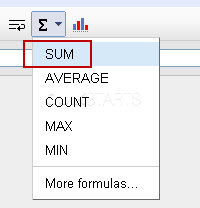
6
The cell you selected to contain the sum should show some text now but not the actual sum.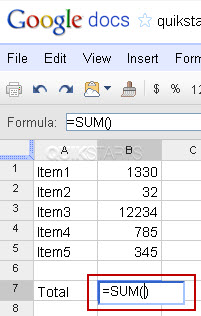
7
Click and drag your mouse across all the cells that contain the values you would like to sum. Note :
Capture cells in the column above the cell that you elected to contain the cell.
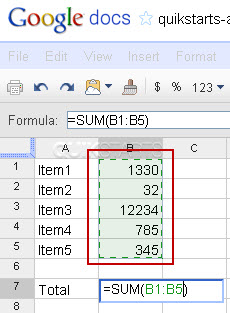
8
Press the "Enter" key on the keyboard and the sum of all of the selected cells should be reflected in the cell.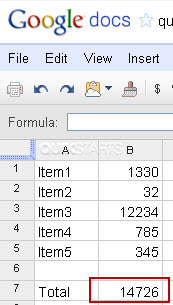
9
This task should now be complete. If not, review and repeat the steps as needed. Submit any questions using the section at the bottom of this page.
comments powered by Disqus
 Ask a question or provide an answer