





This guide is part of the Google Docs series
1.
Auto fit column width in Google docs spreadsheets
2. Change a date in a Google doc spreadsheet cell
3. Change the hyperlink color in a docs document
4. Change the slide speed in Google Docs presentation
5. Convert Google docs spreadsheet into a PDF file
6. Convert Google docs spreadsheet into an Excel file
7. Freeze top row when scrolling in Google Docs
8. How to add a bookmark in Google Docs
9. How to add a cell border in Google Sheets
10. How to add a column to a google docs spreadsheet
2. Change a date in a Google doc spreadsheet cell
3. Change the hyperlink color in a docs document
4. Change the slide speed in Google Docs presentation
5. Convert Google docs spreadsheet into a PDF file
6. Convert Google docs spreadsheet into an Excel file
7. Freeze top row when scrolling in Google Docs
8. How to add a bookmark in Google Docs
9. How to add a cell border in Google Sheets
10. How to add a column to a google docs spreadsheet
Make: Google
Model / Product: Docs
Version: N/A
Objective / Info: Learn how to add a comment in a Google Docs document.
Model / Product: Docs
Version: N/A
Objective / Info: Learn how to add a comment in a Google Docs document.
1
Launch Google Docs by clicking on the "Google apps" icon next to your avatar and click on the Google Docs icon.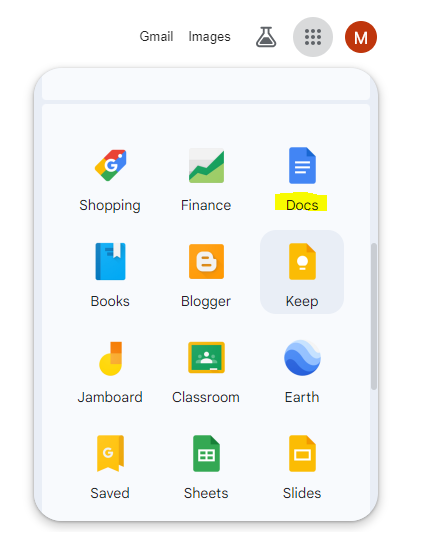
2
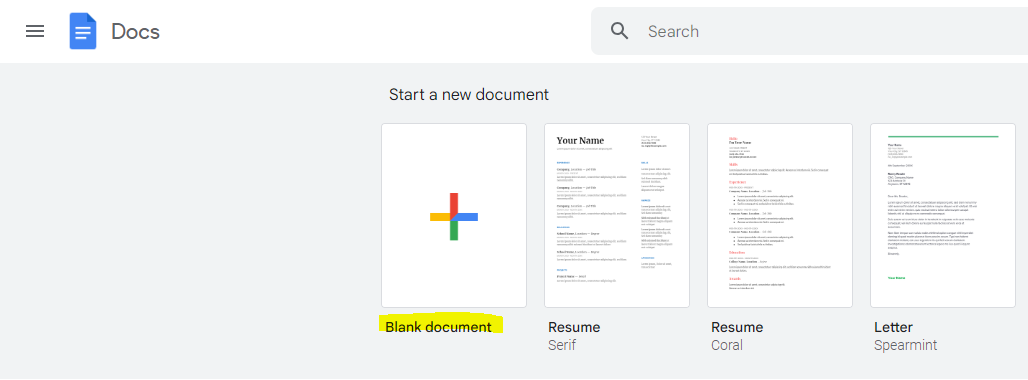
Create a new document by clicking on "Blank document".
Note :
Alternatively, you can select an already existing document.
3
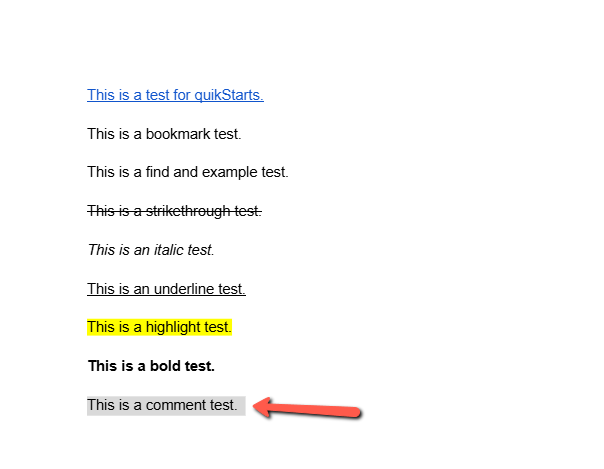
Highlight the sentence that you want to add a comment to.
4
Click on the "Add comment" icon.
Note :
Or alternatively, just hit Ctrl + Alt + M.

5
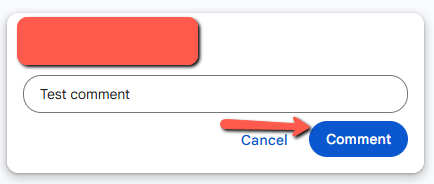
Type in the comment you want to add, then click "Comment".
6
Your comment should now be added.

7
This task should be complete. Review the steps if you had any issues and try again. Submit questions or request for more guides in the questions section below.
comments powered by Disqus
 Ask a question or provide an answer